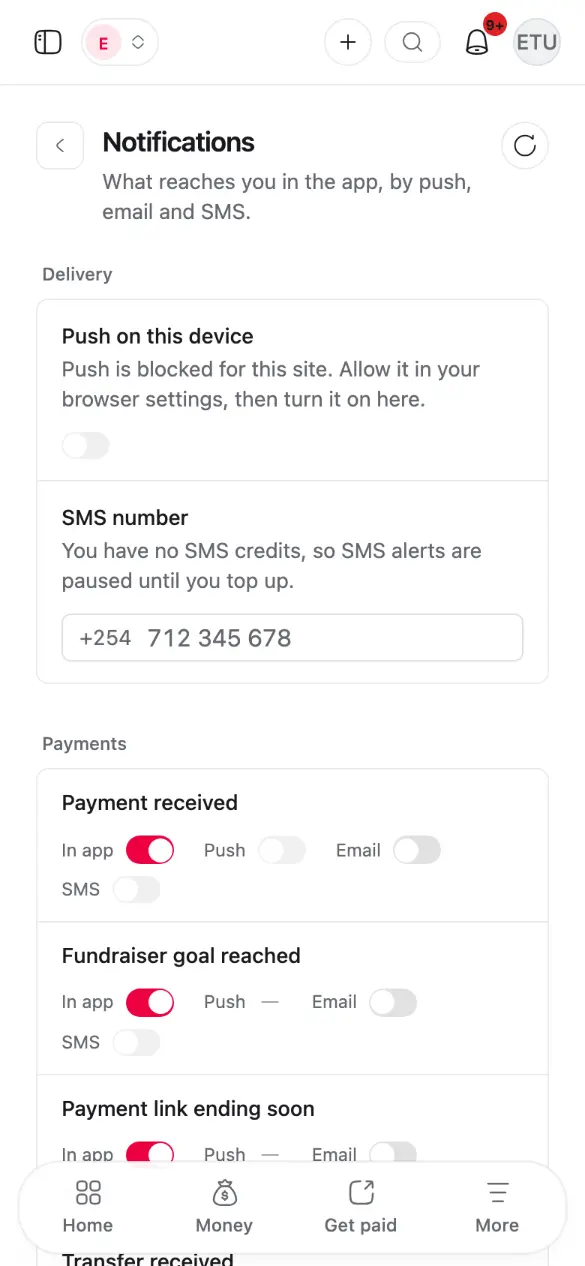
Notifications
Choose what you hear about and where: in the app, email, SMS or push.
- Step 1.
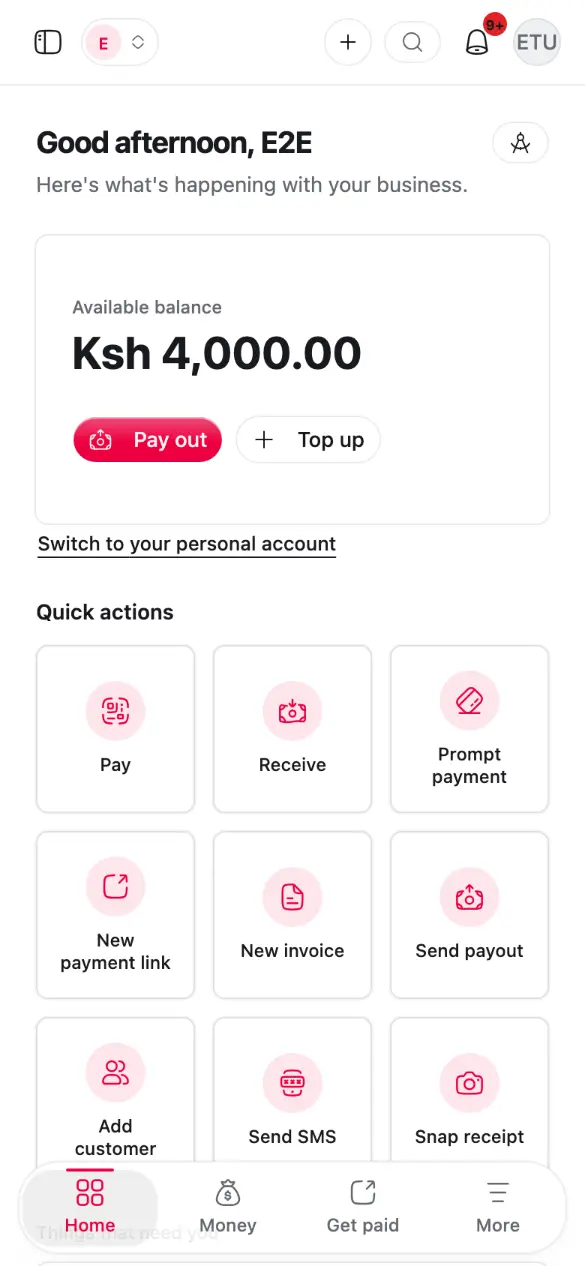
Tap More
It is at the right of the bar at the bottom of the screen.
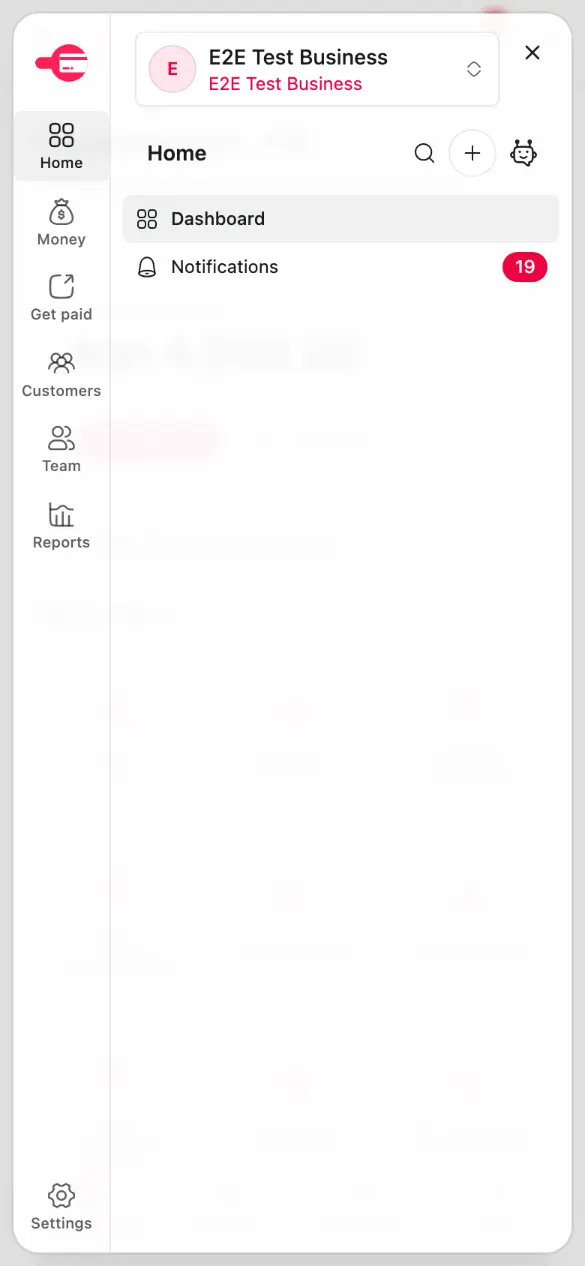
- Step 2.
Tap Settings
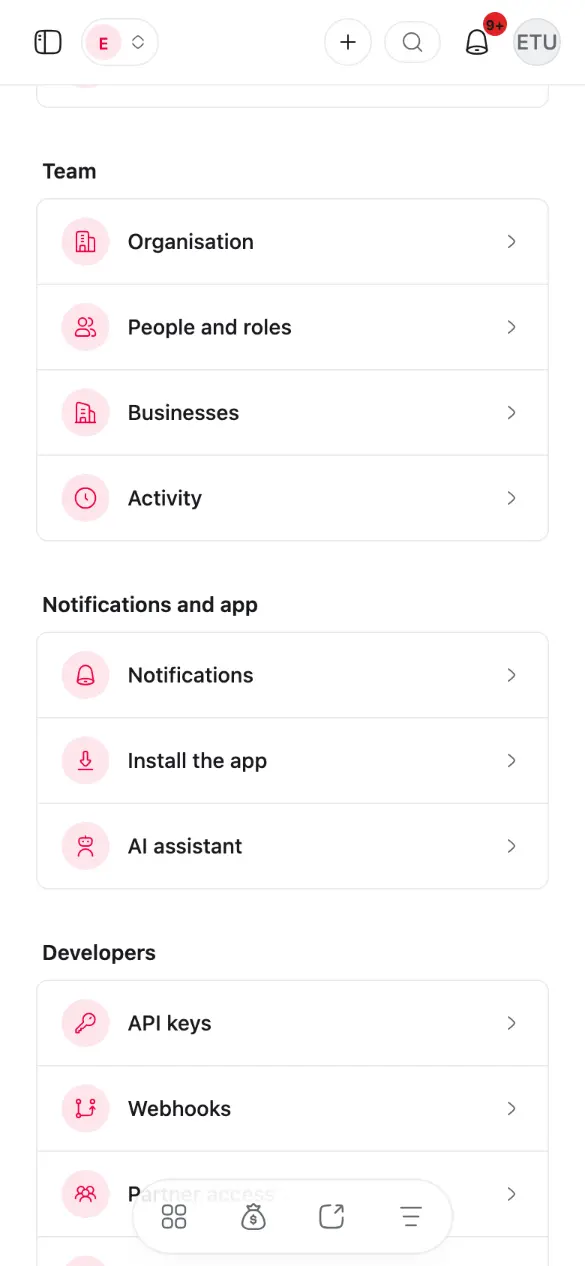
- Step 3.
Tap Notifications
It is under Notifications and app.
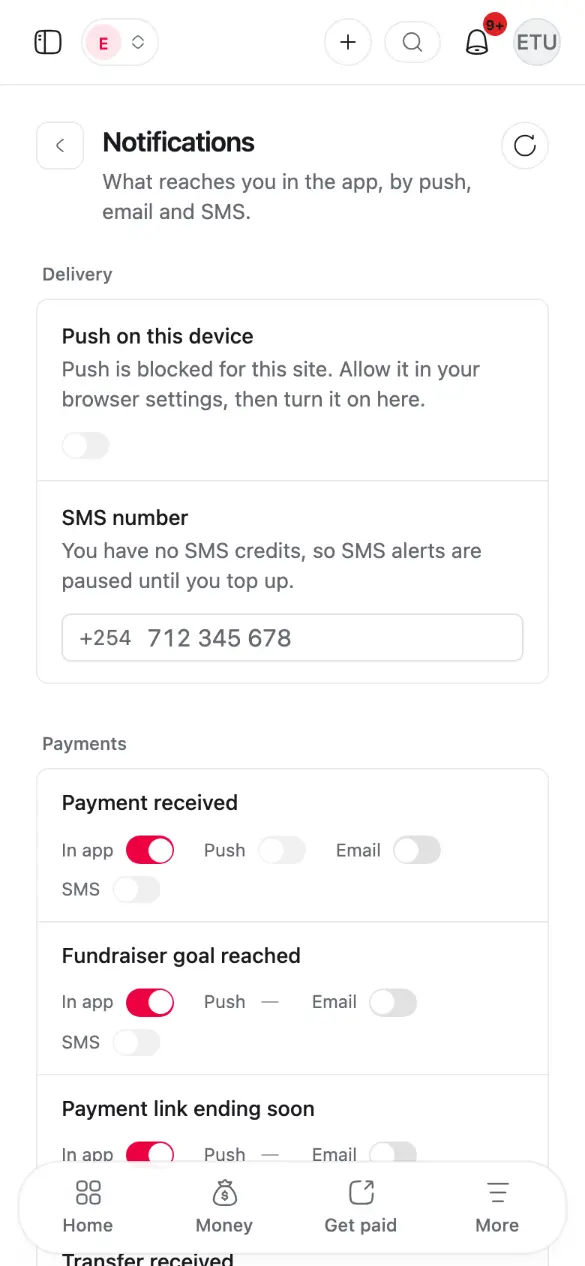
Every kind of update is listed, with a switch for each way it can reach you.
- Step 4.
Turn on Push on this device
Your phone or computer then shows alerts even when CitaPay is closed. Your browser asks you to allow it.
- Step 5.
Pick the channels for each update
Such as a payment arriving by email as well as in the app. Changes save as soon as you tap a switch.
Tap Payment received by Email