Set up your team, step 3 of 4
Approve payouts
Have a second person approve money going out.
- Step 1.
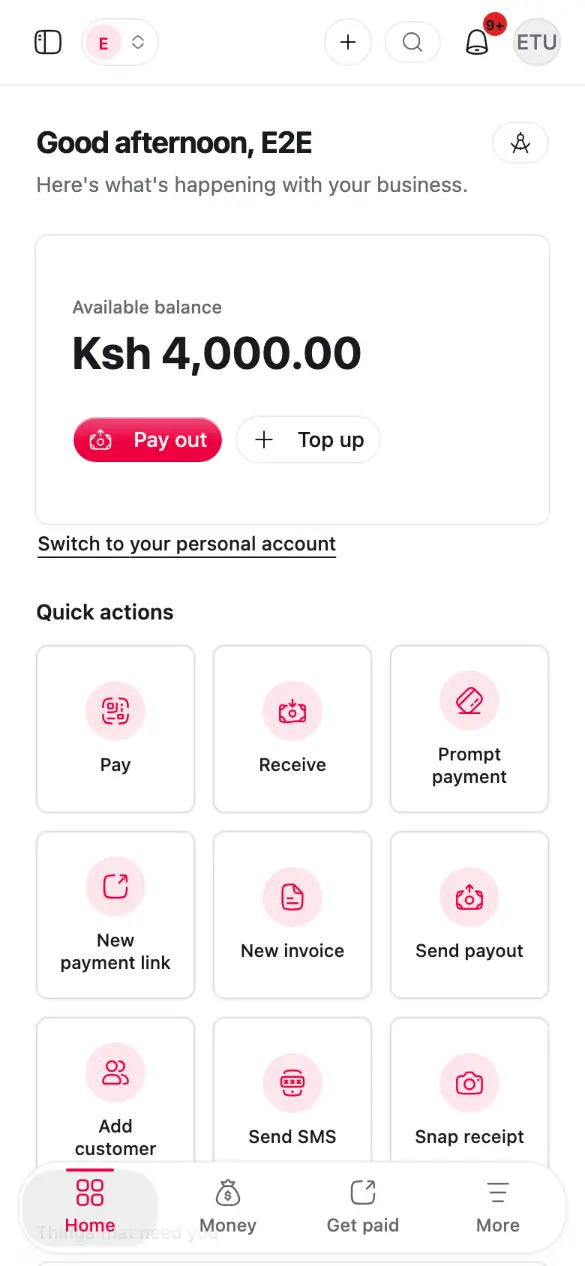
Tap More
First set the amount above which payouts need a second person.
- Step 2.
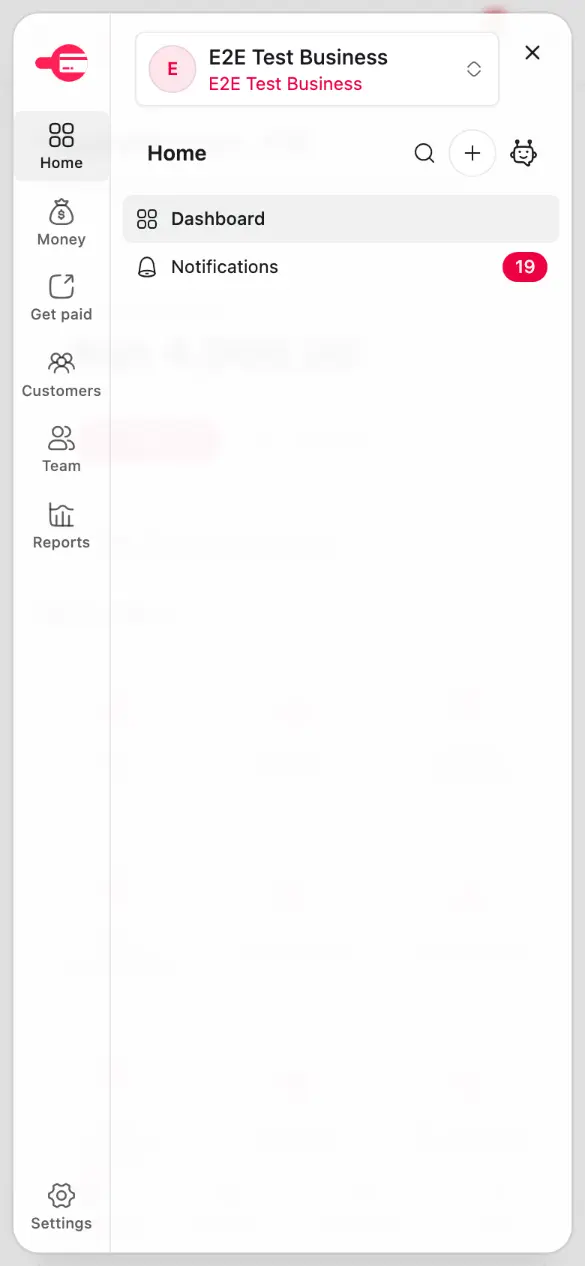
Tap Team
- Step 3.
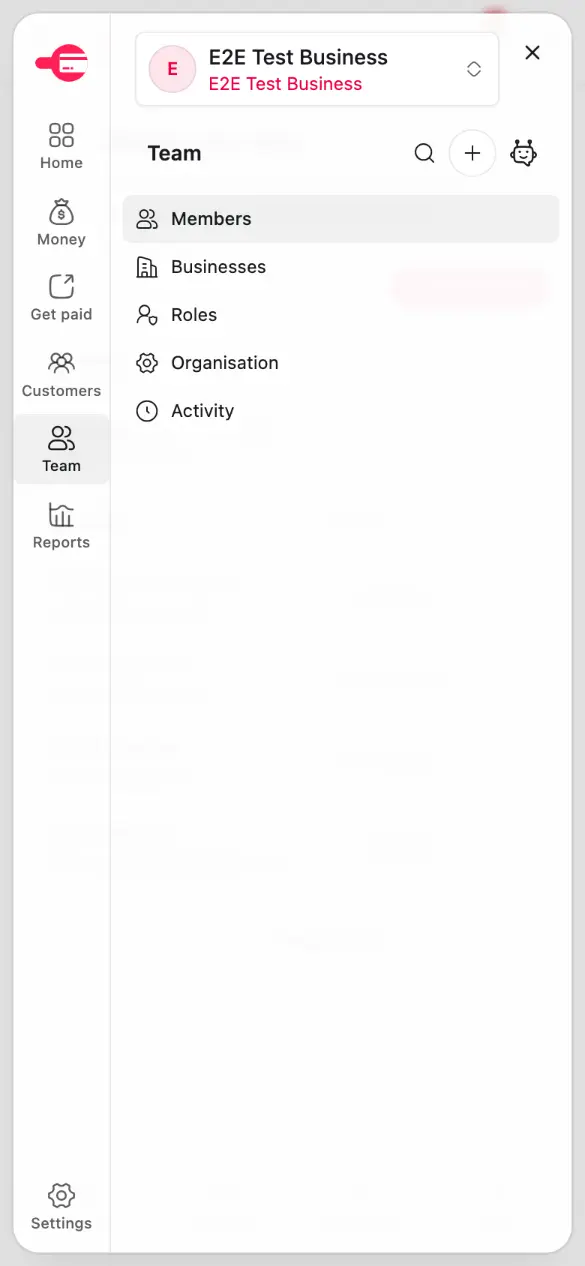
Tap Organisation
- Step 4.
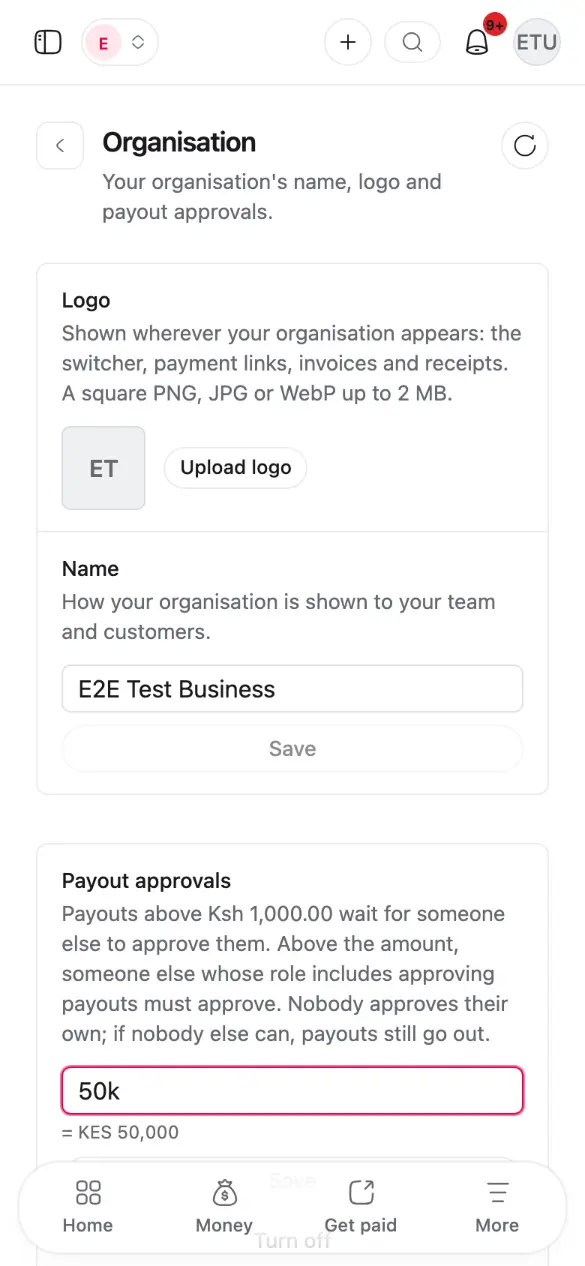
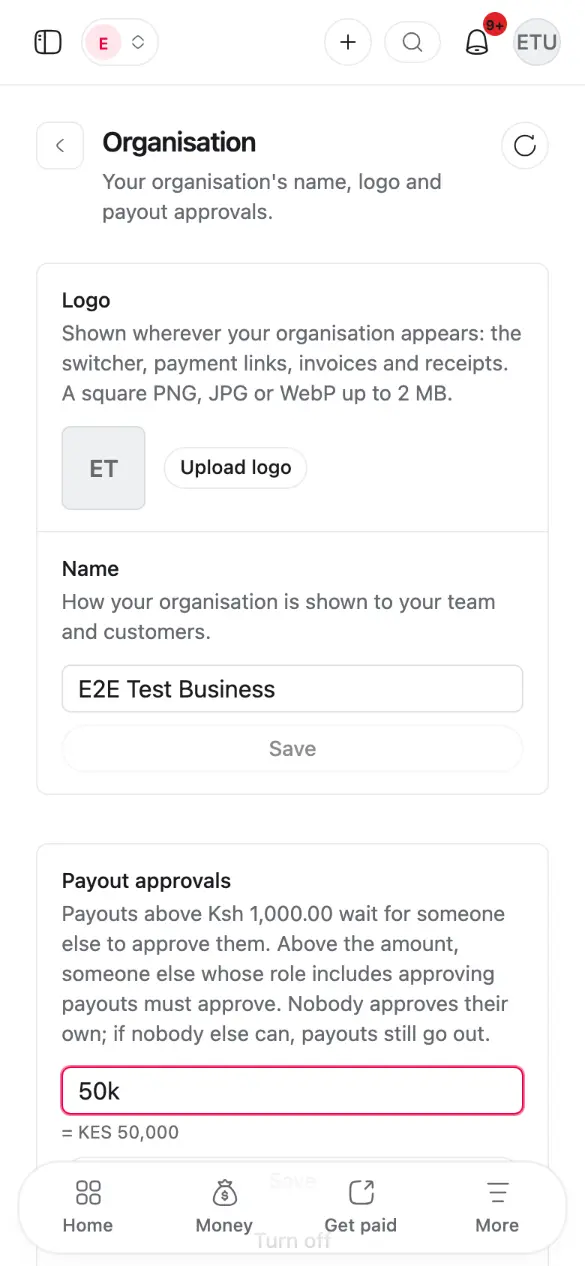
Type the approval amount
It is under Payout approvals. Payouts above it wait for someone else whose role includes approving payouts.
Type in Approve above, e.g. 50k, for example 50k
- Step 5.
Tap Save
- Step 6.
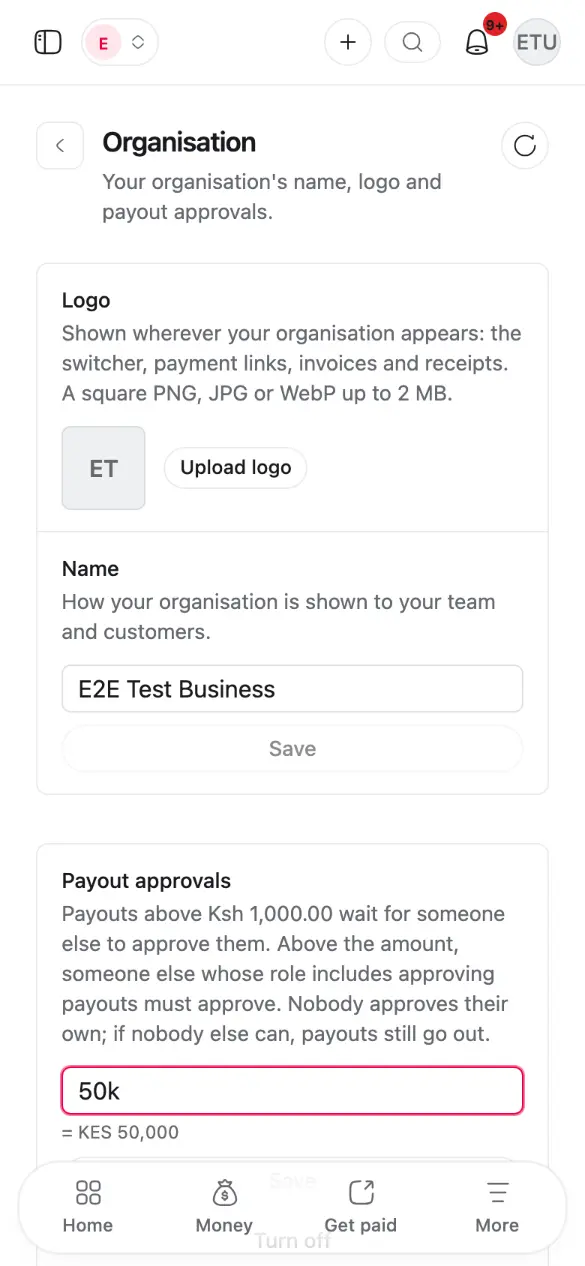
Tap Money
When a payout needs approval, Home's Things that need you and the bell tell you. Money is in the bar at the bottom of the screen.
- Step 7.
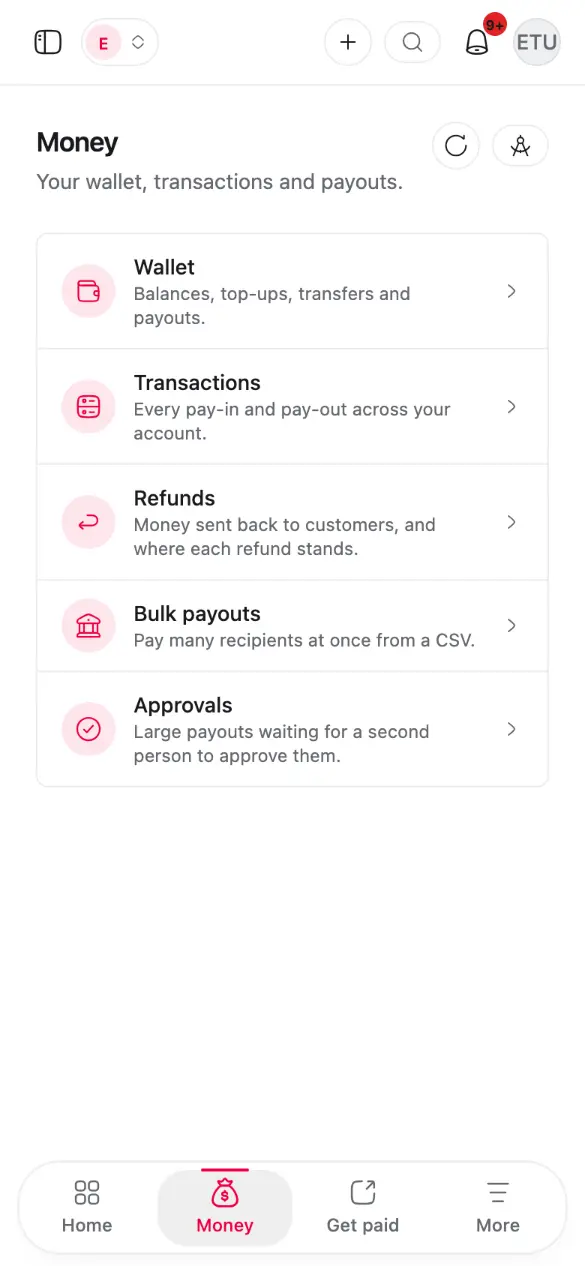
Tap Approvals
Payouts waiting for you are under Waiting, with who asked, how much and to whom.
- Step 8.
Approve or decline from the menu on the payout
Tap Approve, check the details, then tap Approve and send. The payout goes out at once. Nobody can approve their own payout.
- Step 9.
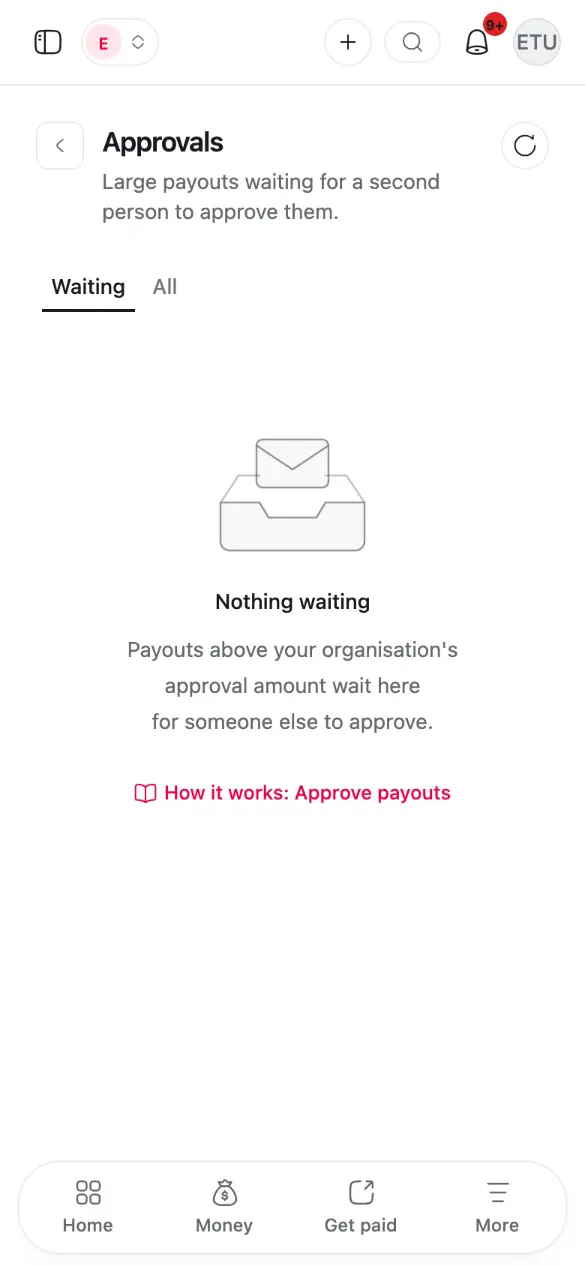
Tap All to see past decisions
Next in set up your team
Who did what
Check who did what, and when.