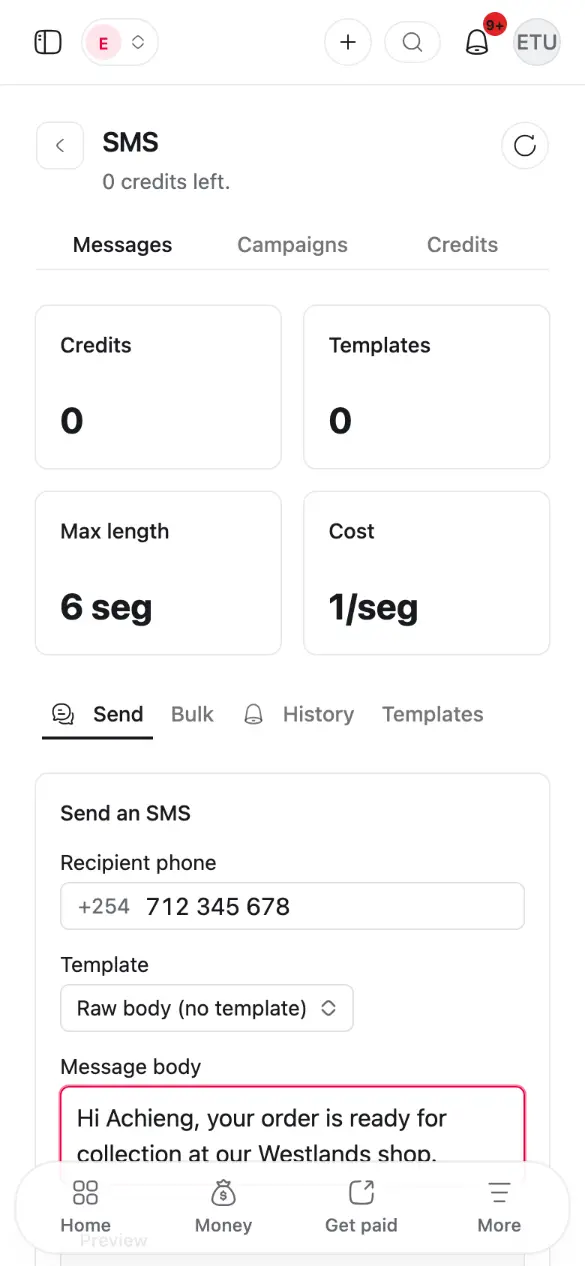
SMS to your customers
Send messages from your business name to one person or many.
- Step 1.
Tap More
It is at the right of the bar at the bottom of the screen.
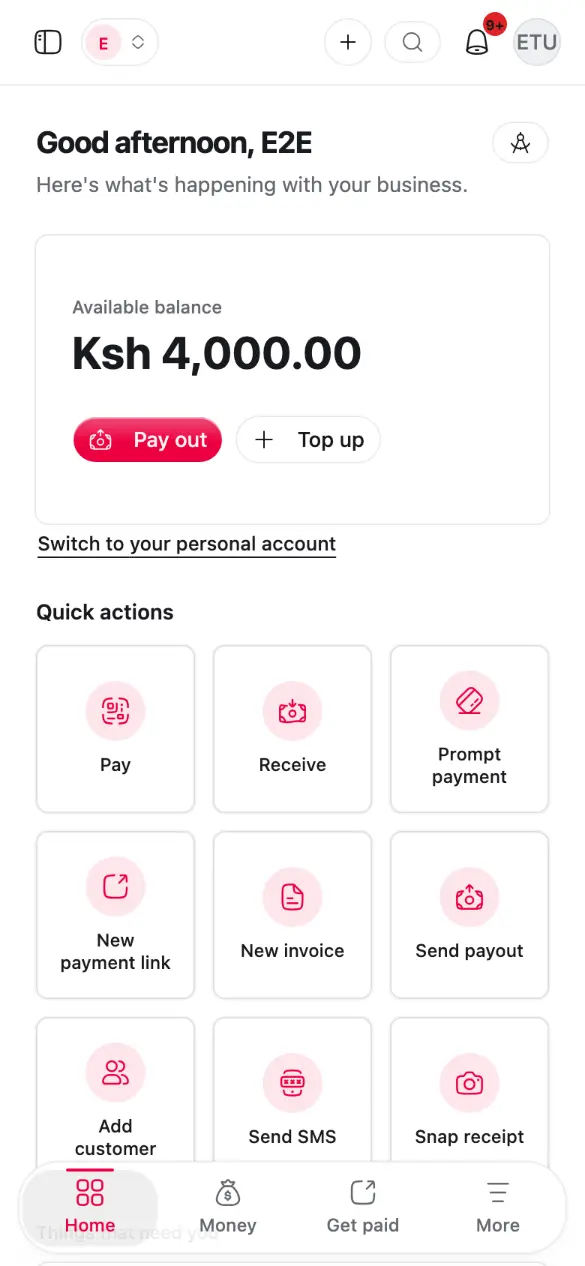
- Step 2.
Tap Customers
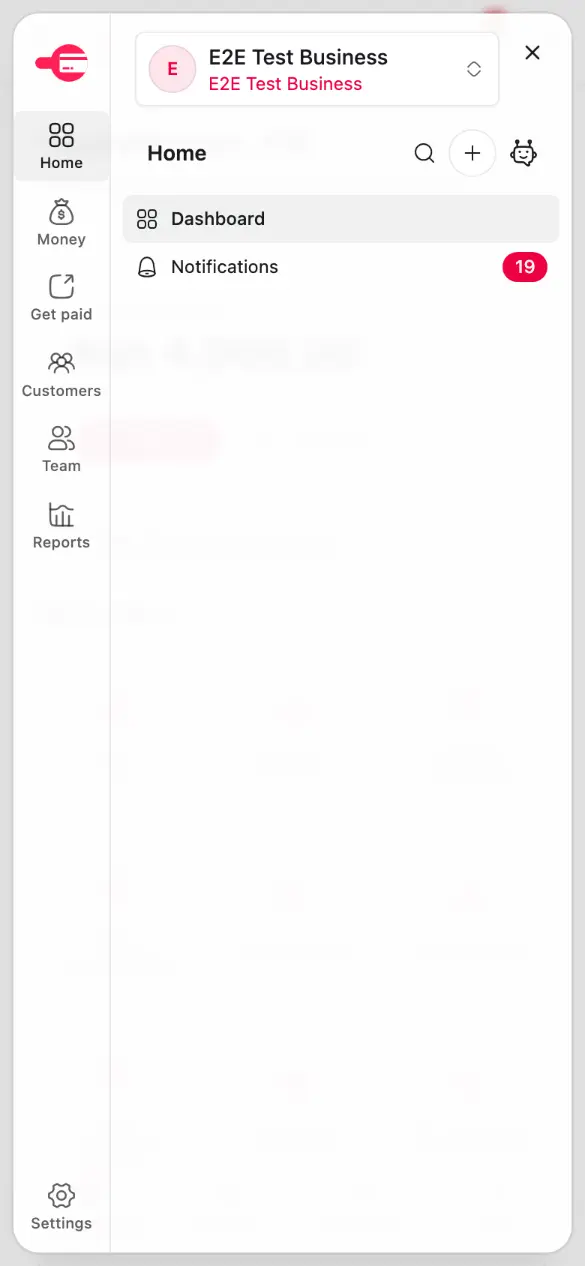
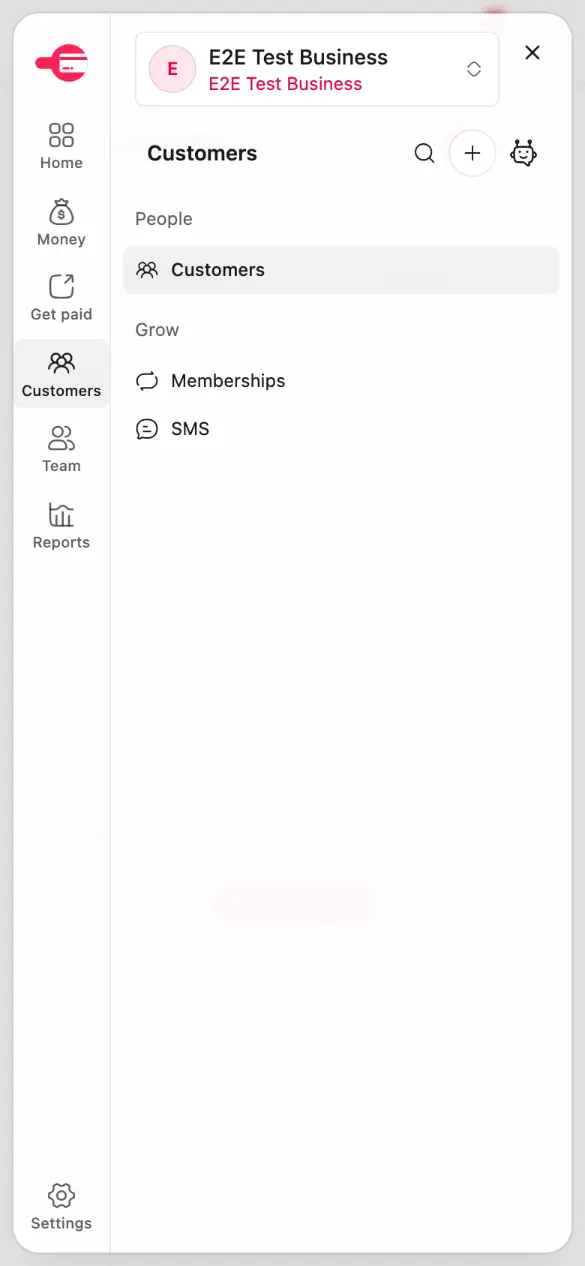
- Step 3.
Tap SMS
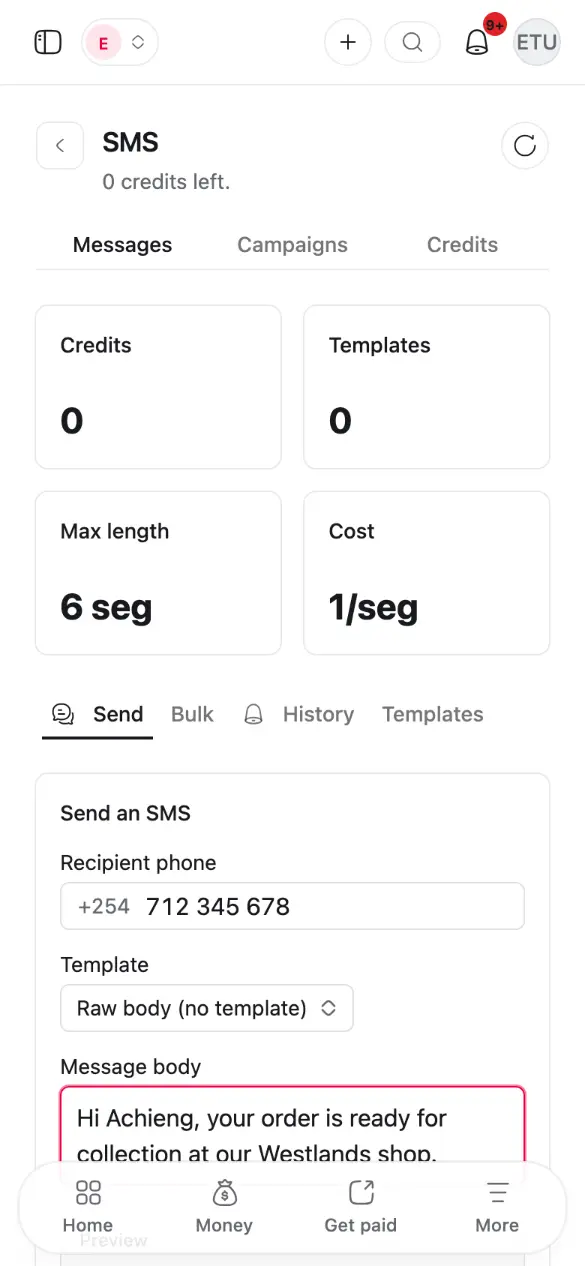
Messages is open. The top shows how many credits you have.
- Step 4.
Tap Credits
Each SMS uses credits, so buy a package first.
The packages are listed with their price per SMS.
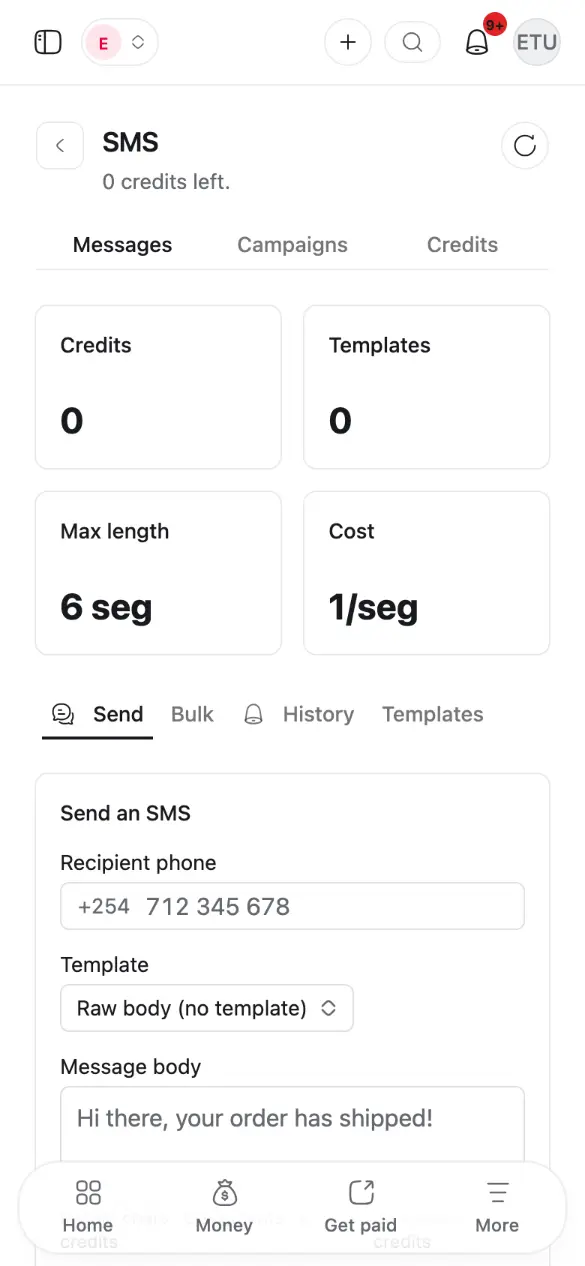
- Step 5.
Tap Buy on a package
Pay by M-Pesa (a prompt goes to your business phone) or from your wallet. Turn on Auto-renew below so you never run out.
Tap Buy 100 credits
The credits are added as soon as the payment is confirmed.
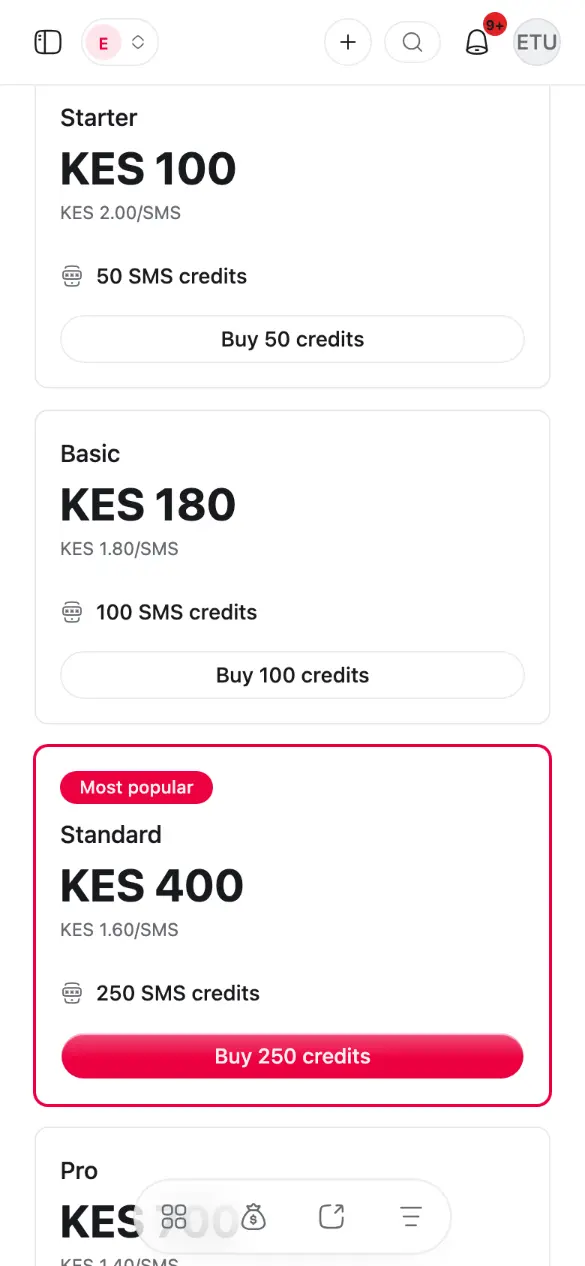
- Step 6.
Tap Messages
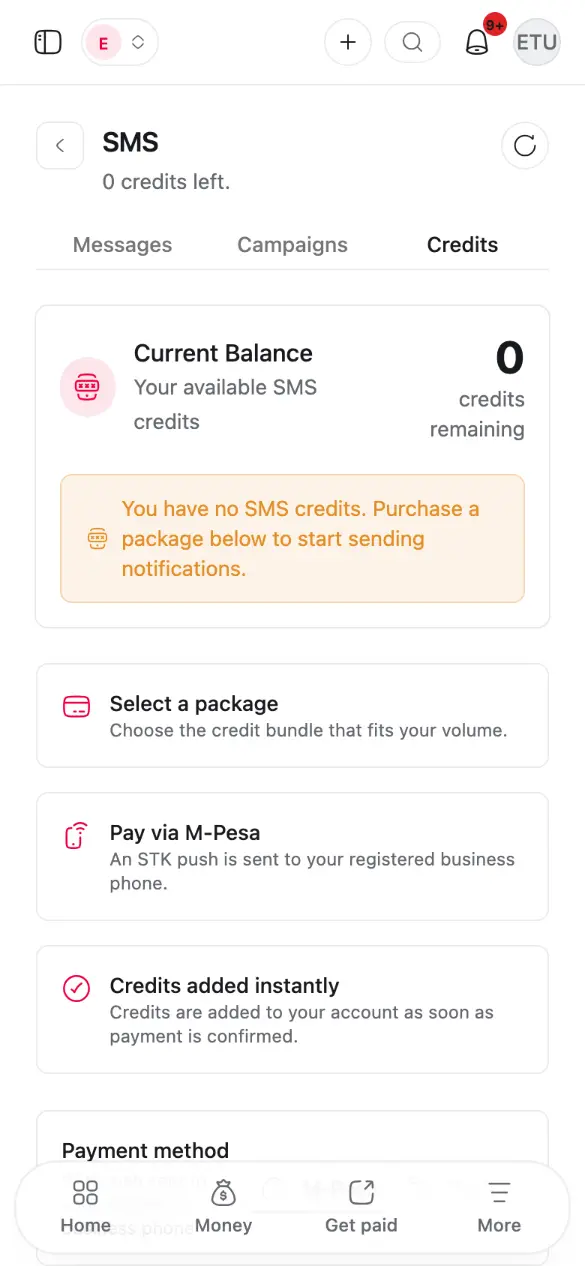
- Step 7.
Type the phone number
Type in Recipient phone, for example 712 345 678
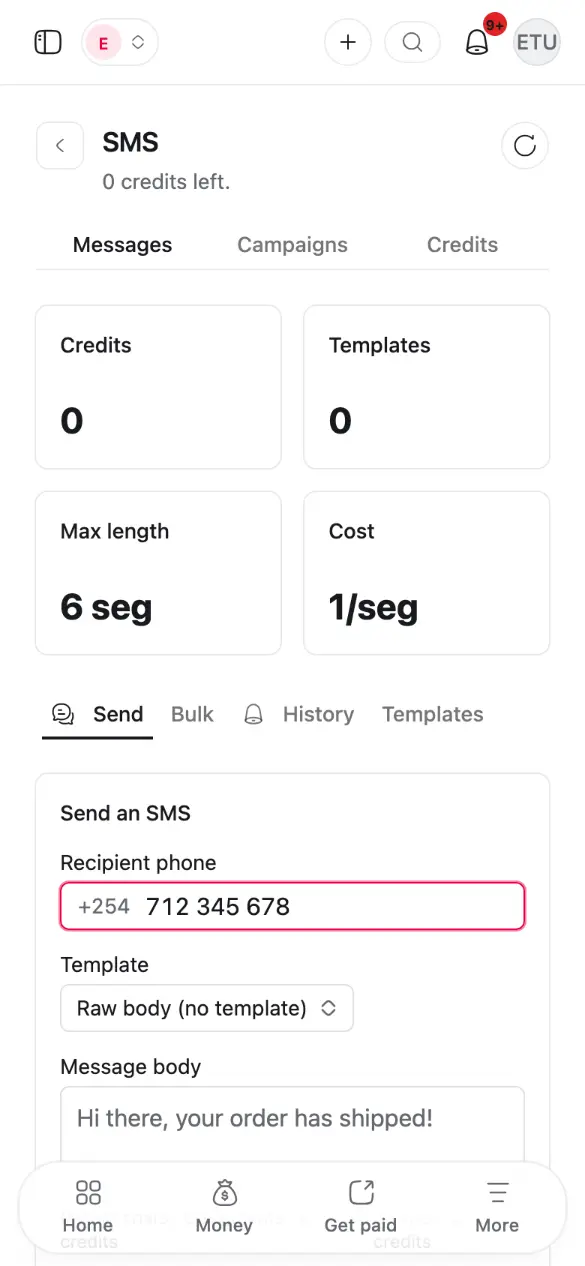
- Step 8.
Write the message
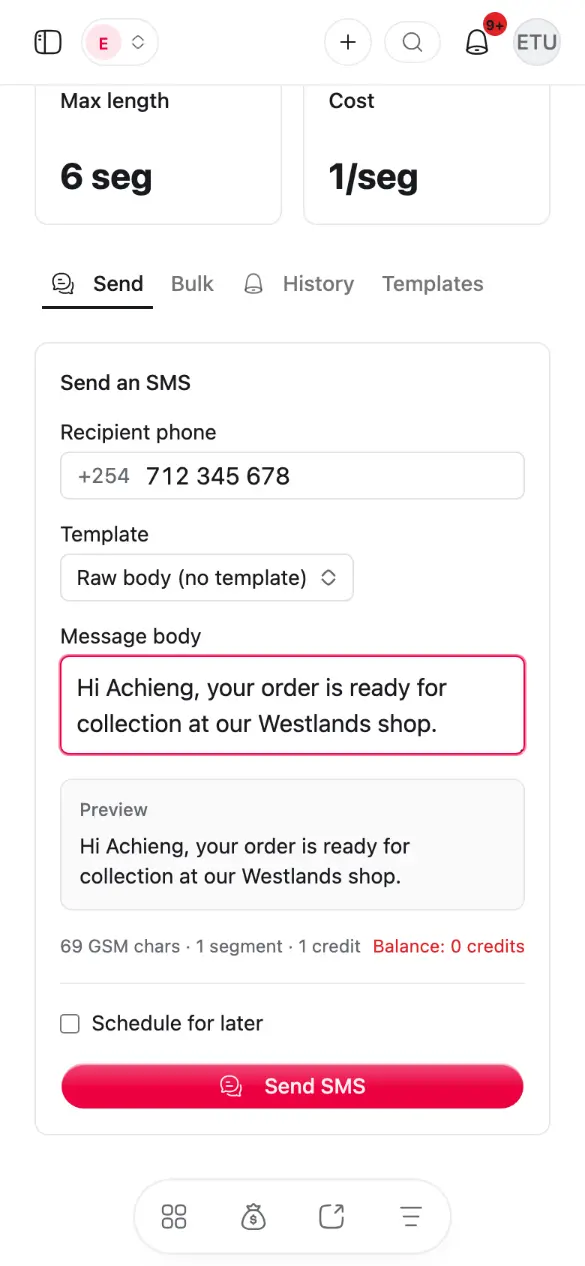
Under the box you see how many SMS it takes and the credits it uses. Pick a saved template instead to reuse a message.
Type in Message body, for example Hi Achieng, your order is ready for collection at our Westlands shop.
- Step 9.
Tap Send SMS
It goes out from your business name. See it under History.
- Step 10.
Tap Campaigns to message many people
Pick a group of customers, preview who it reaches and what it costs, then send.