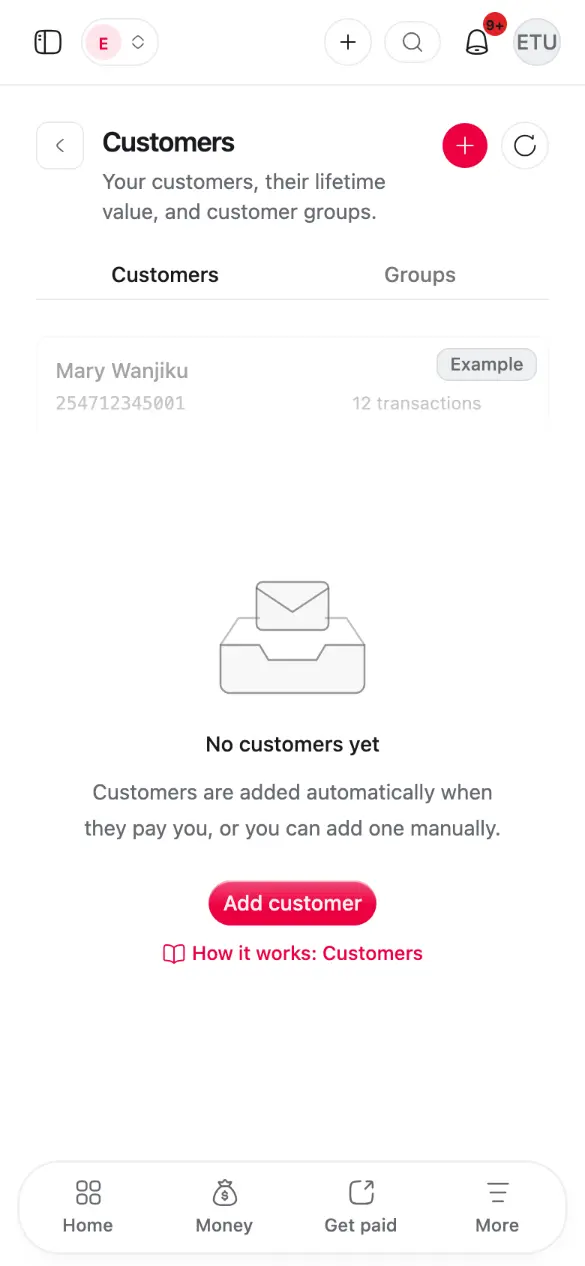
Customers
Your contact book, with what each person has paid you.
- Step 1.
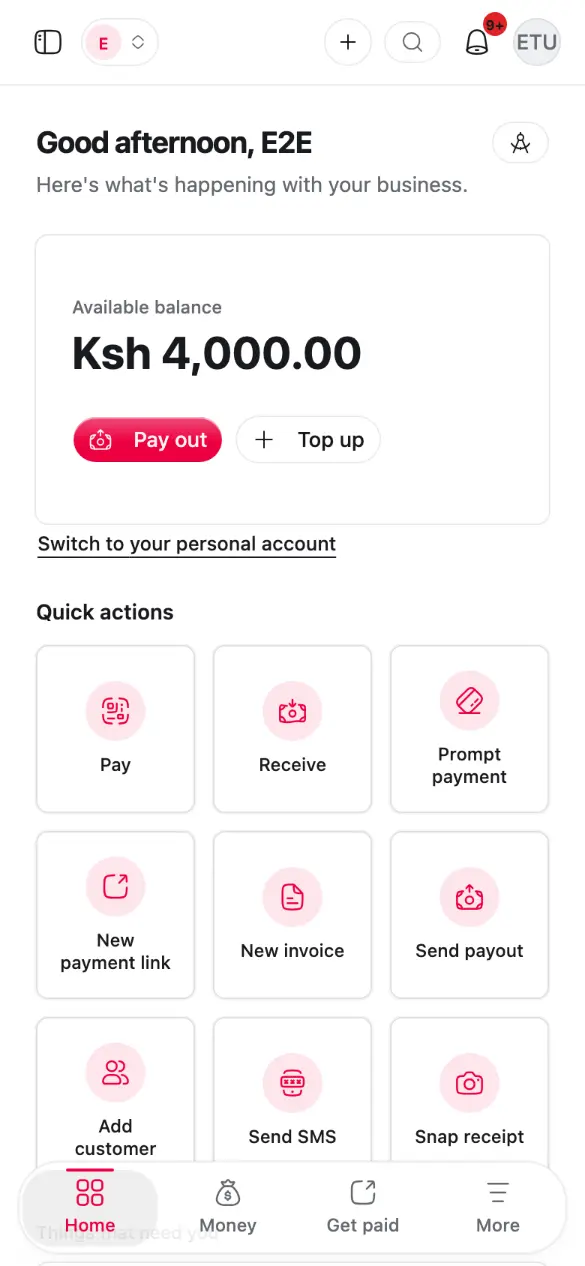
Tap More
It is at the right of the bar at the bottom of the screen.
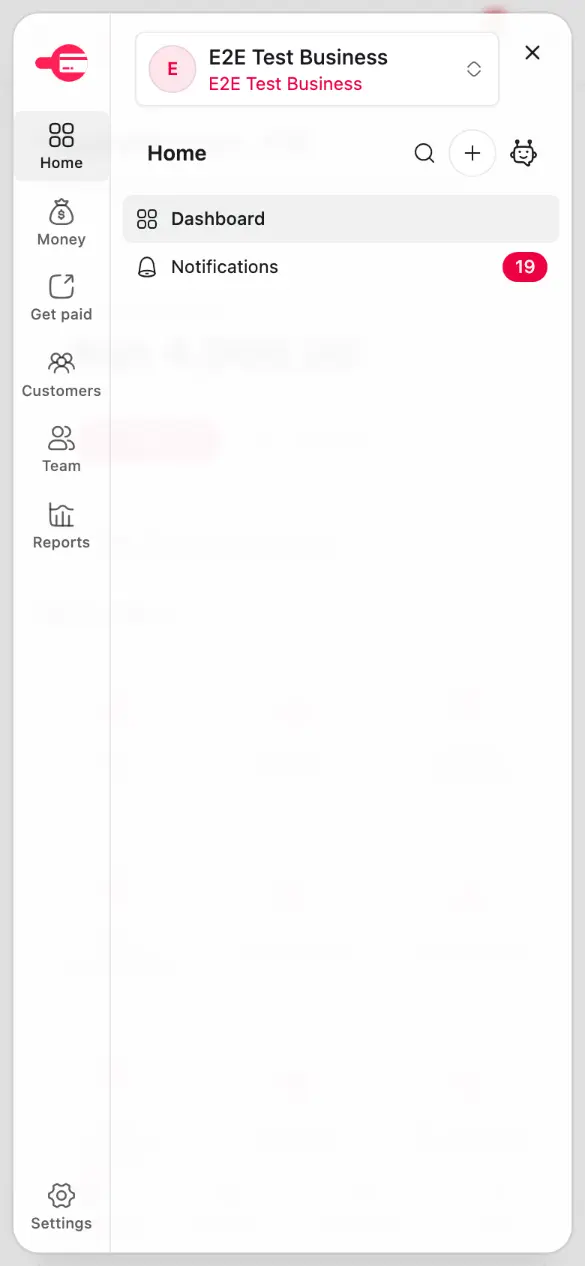
- Step 2.
Tap Customers
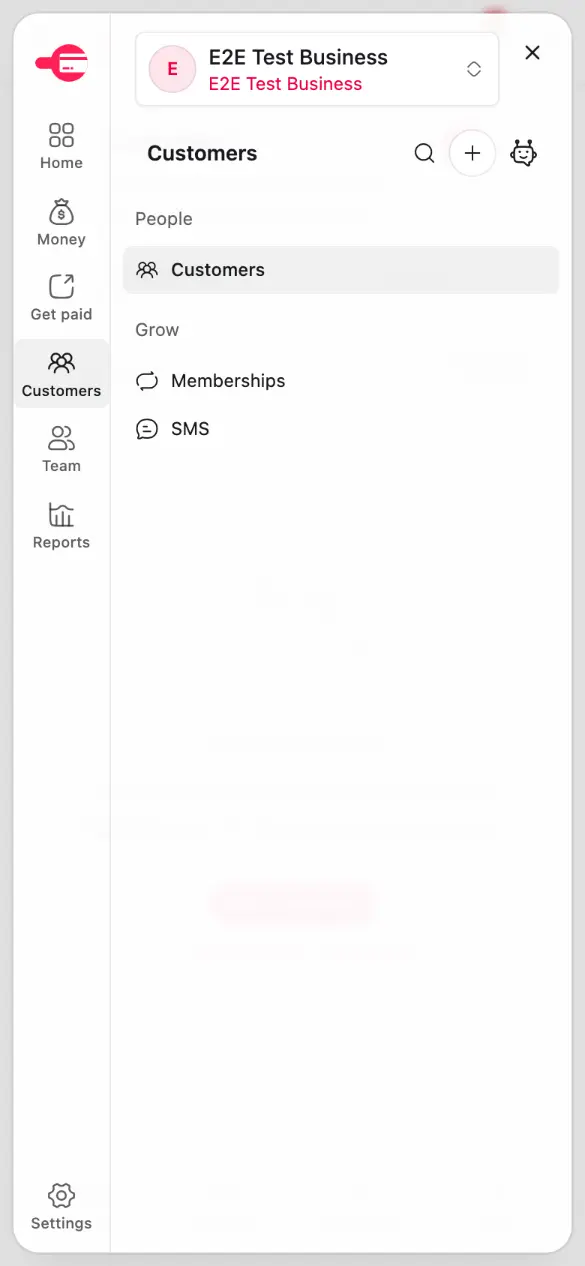
- Step 3.
Tap Customers again
Everyone who has paid you is added here for you.
- Step 4.
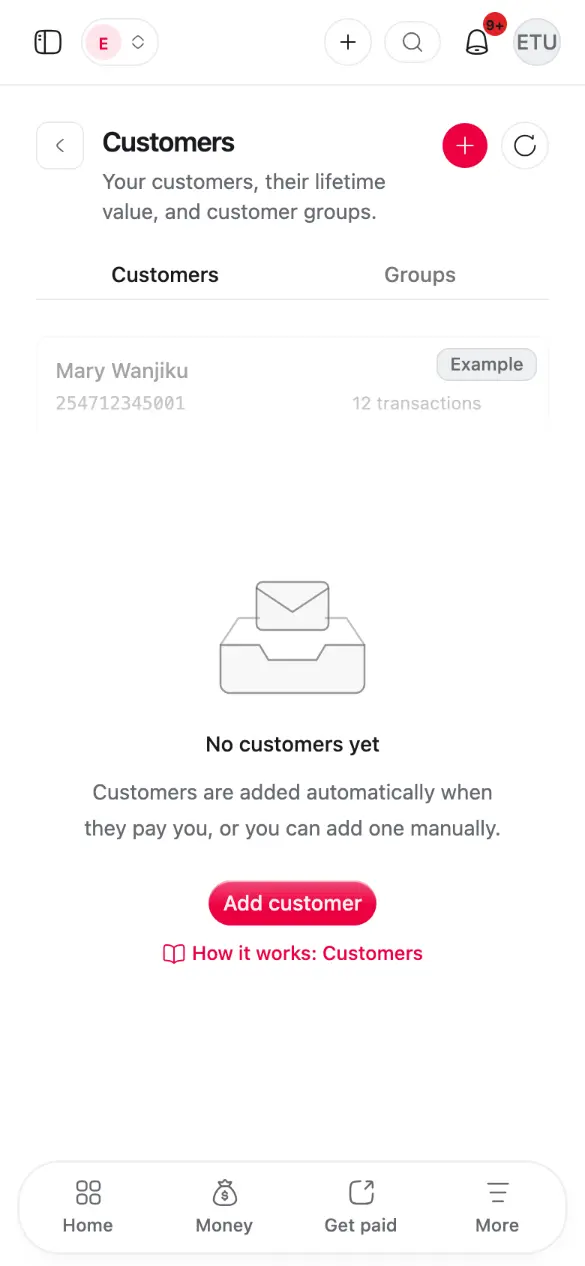
Tap Add Customer
A short form opens.
- Step 5.
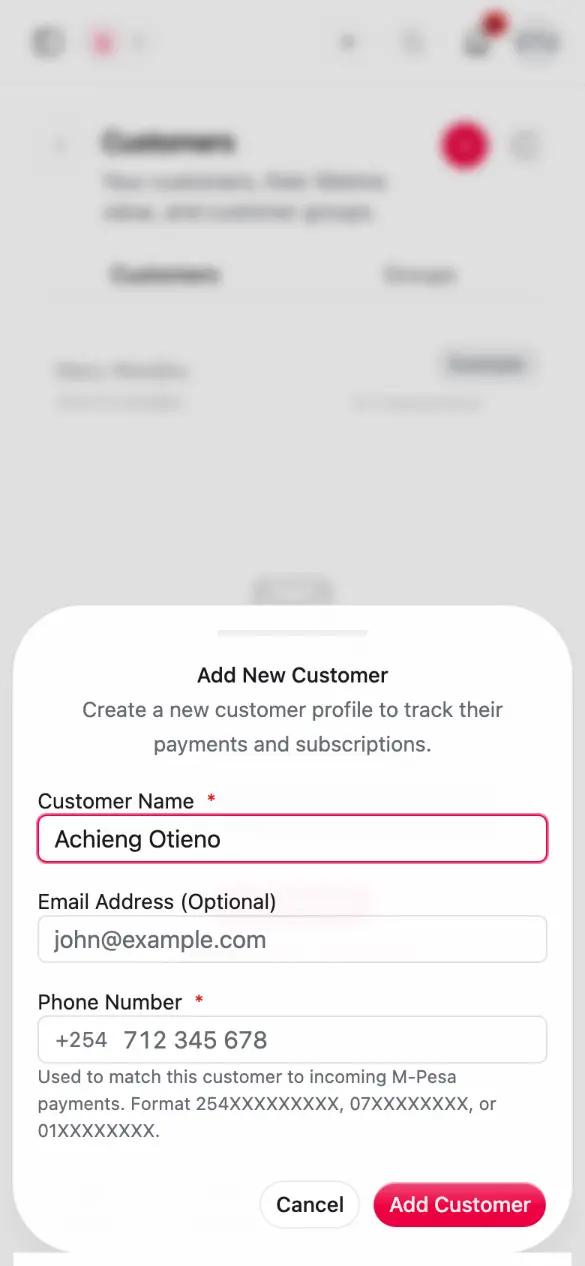
Type their name
Type in Customer Name *, for example Achieng Otieno
- Step 6.
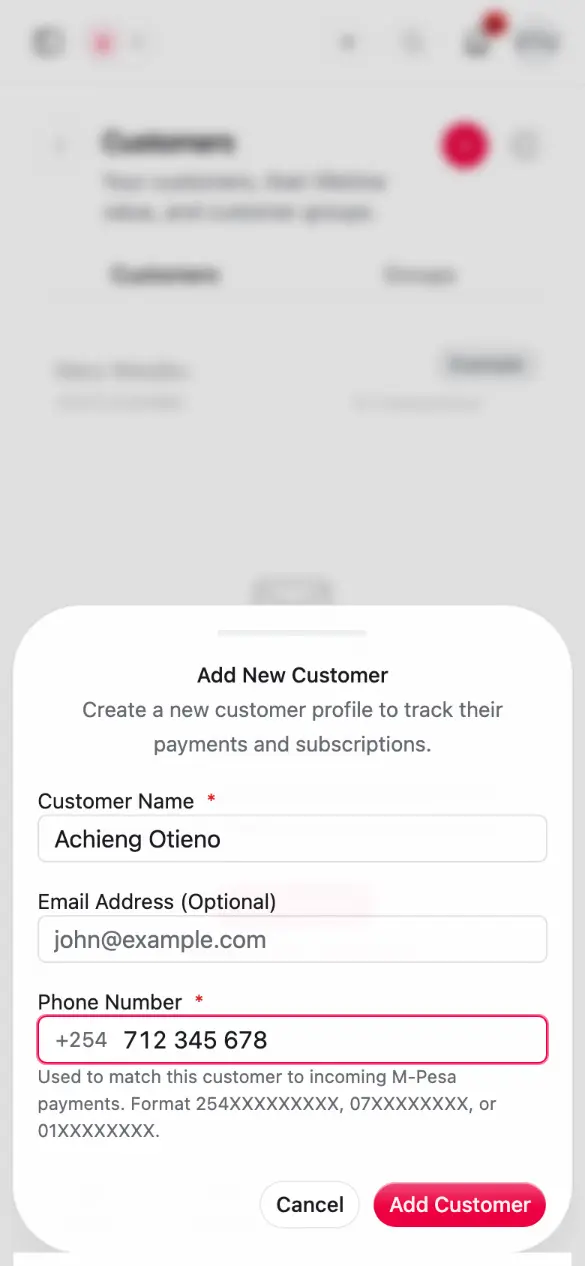
Type their phone number
Payments from this number are matched to them on their own. An email is optional.
Type in Phone Number *, for example 712 345 678
- Step 7.
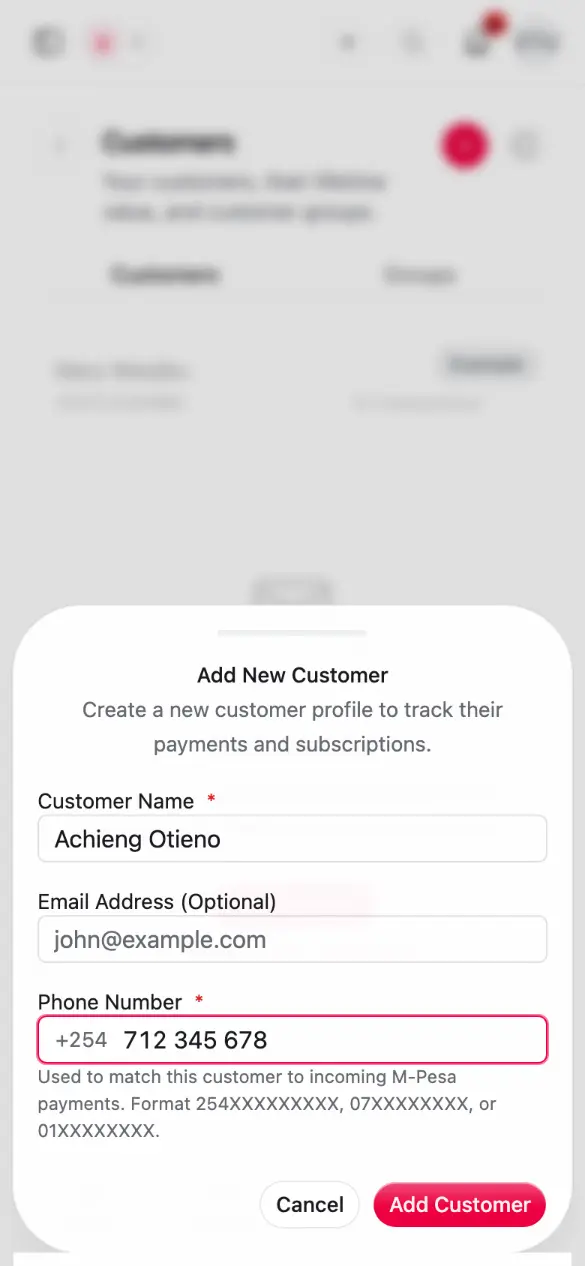
Tap Add Customer
They are in your list. Open them to see what they have paid and to bill them.
- Step 8.
Tap Groups to put customers together
Group customers, such as regulars or a class, to send them an SMS or invoice together.