Set up your team, step 1 of 4
Your organisation
One organisation holds your team and every business you run.
- Step 1.
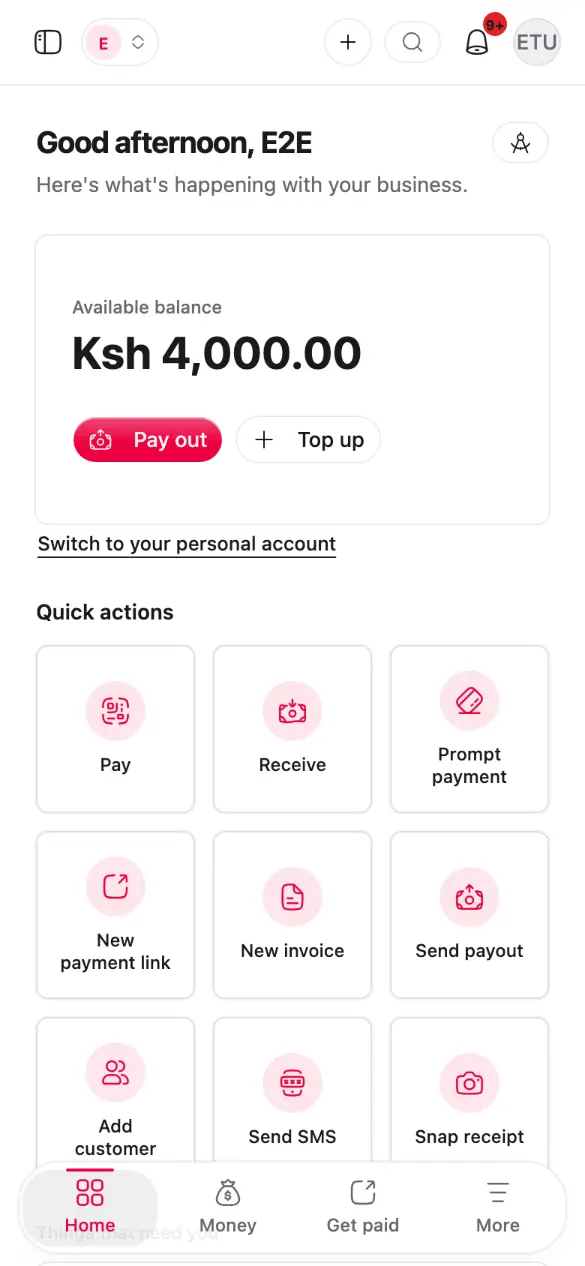
Tap More
It is at the right of the bar at the bottom of the screen.
- Step 2.
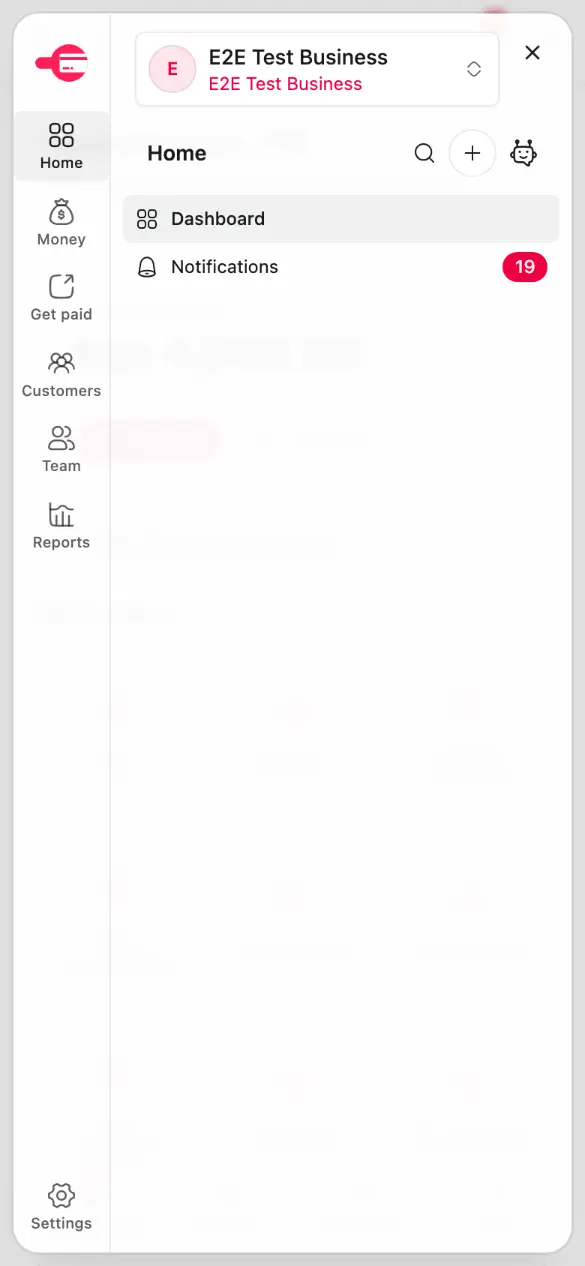
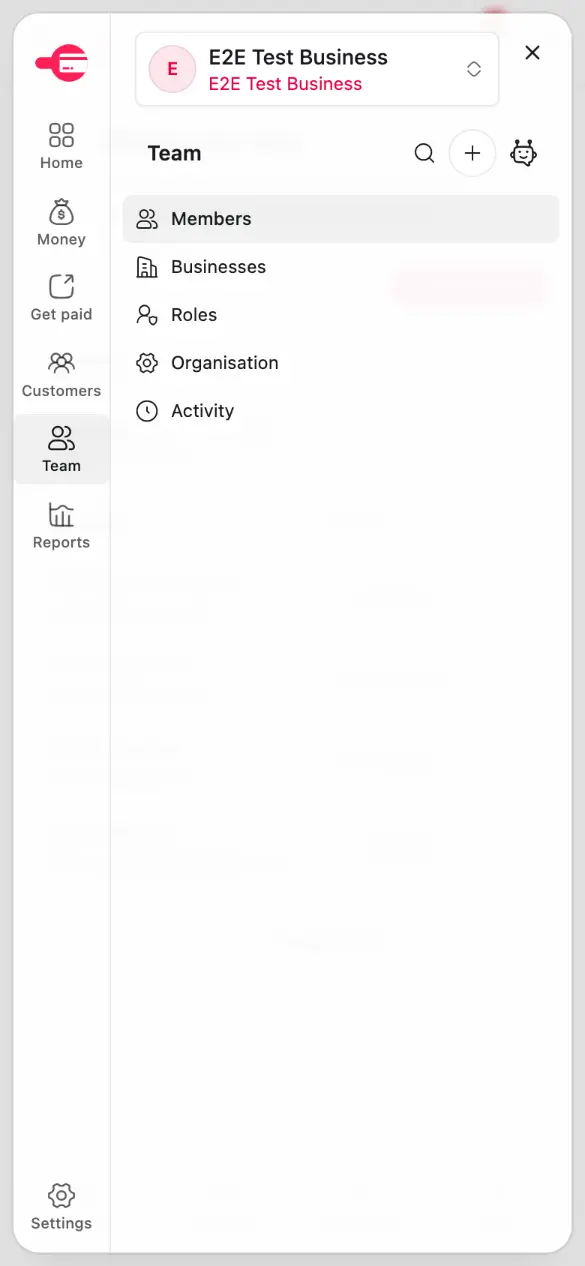
Tap Team
Members, Businesses, Roles, Organisation and Activity are listed.
- Step 3.
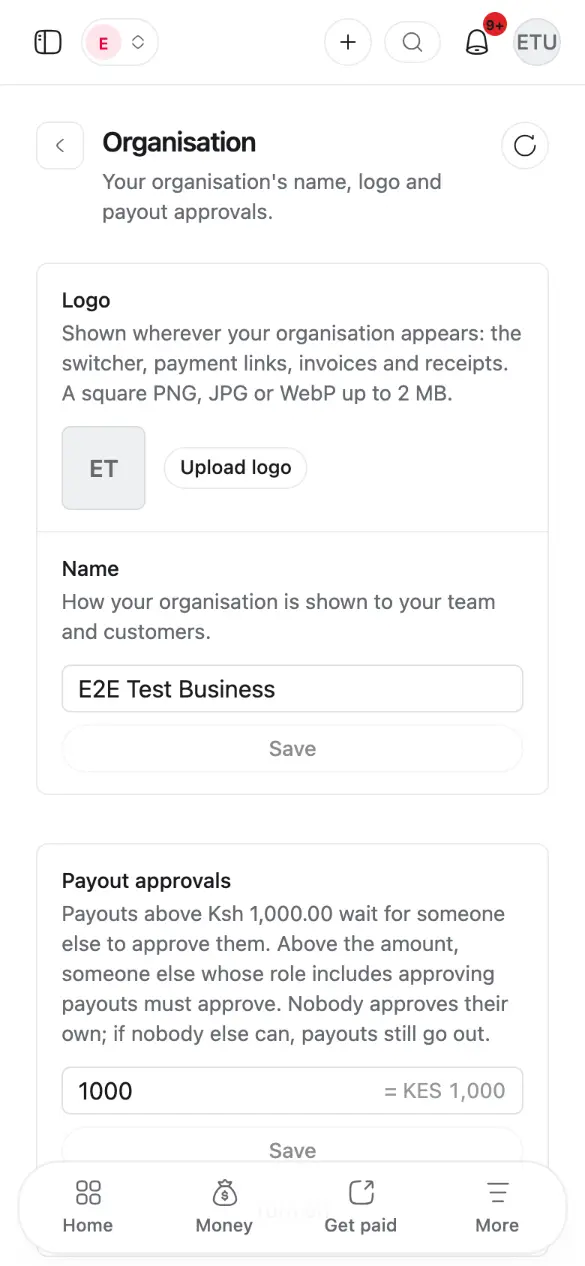
Tap Organisation
Your organisation's name and logo, which customers see on payment links, invoices and receipts, and your payout approval amount.
- Step 4.
Tap Upload logo to add your logo
A square picture up to 2 MB.
- Step 5.
Tap Add a business for another branch
Open Businesses under Team. Each business has its own wallet, @name and verification.
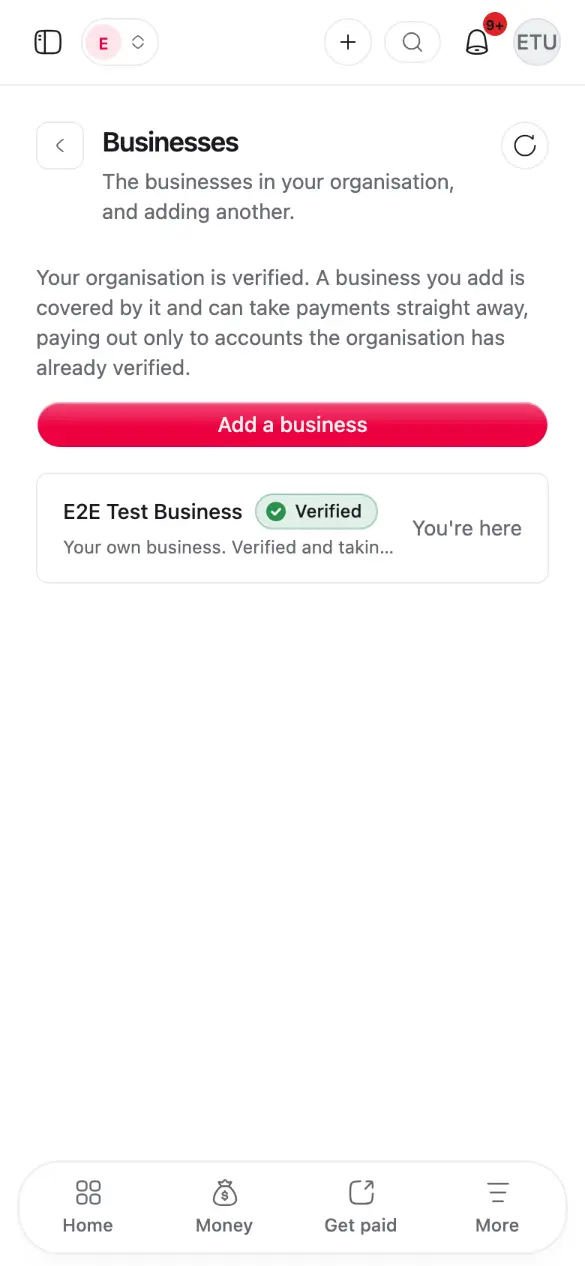
- Step 6.
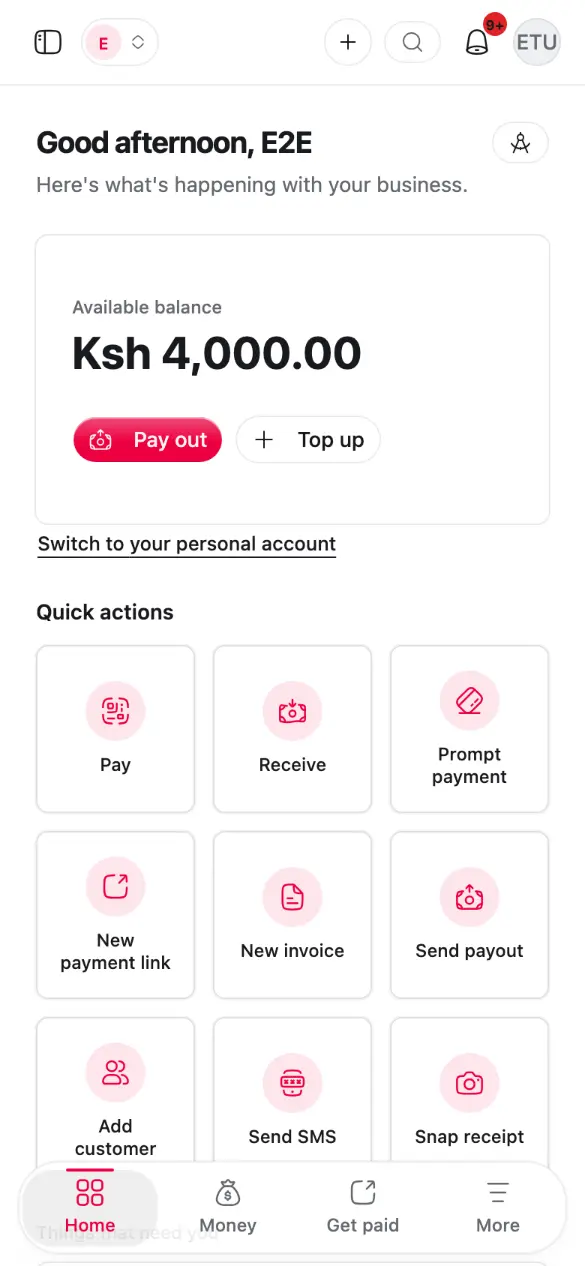
Switch business from the menu
Tap the business name at the top. Everything you see then follows the business you picked.
Tap Switch account
Next in set up your team
Invite your team and set roles
Invite each person with the role their job needs.