Set up your team, step 2 of 4
Invite your team and set roles
Give each person exactly the access their job needs.
- Step 1.
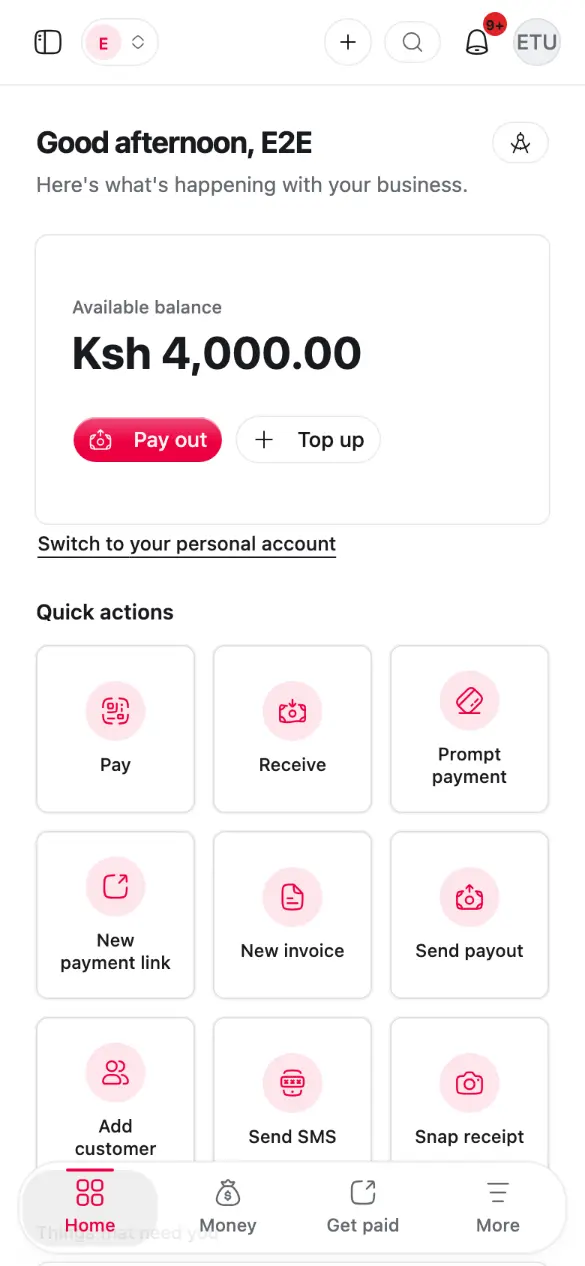
Tap More
It is at the right of the bar at the bottom of the screen.
- Step 2.
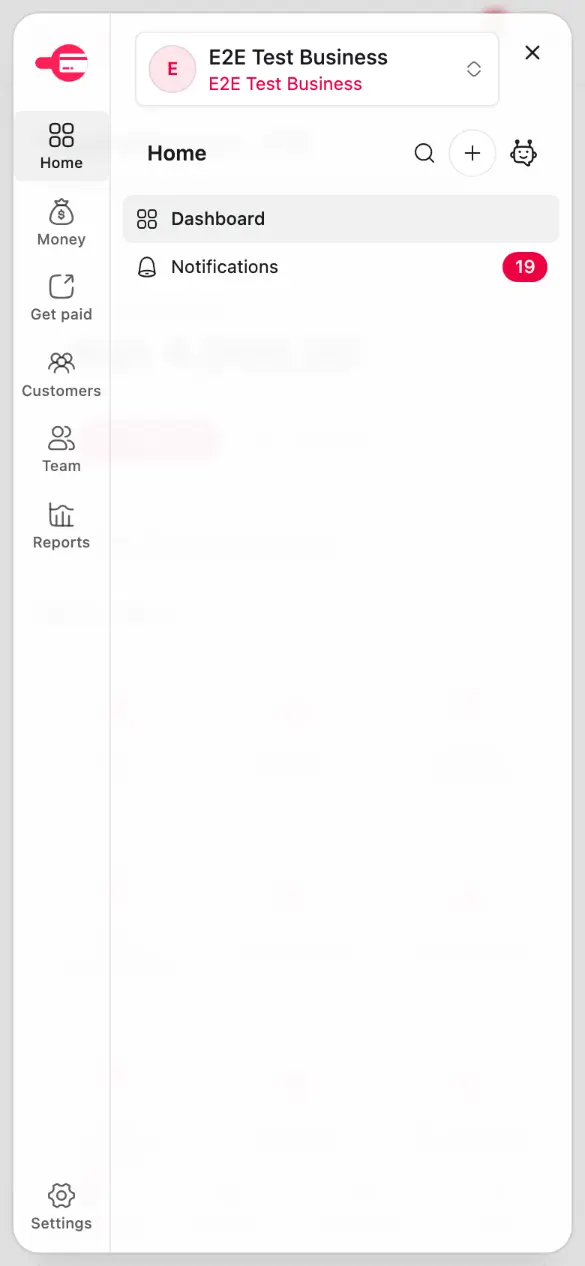
Tap Team
- Step 3.
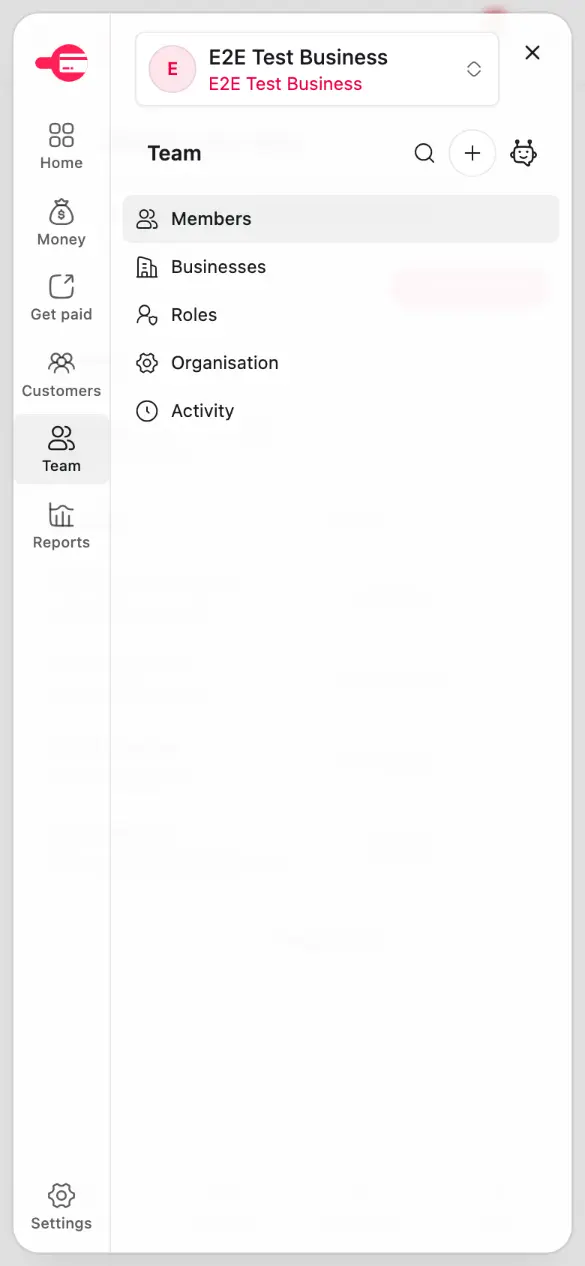
Tap Members
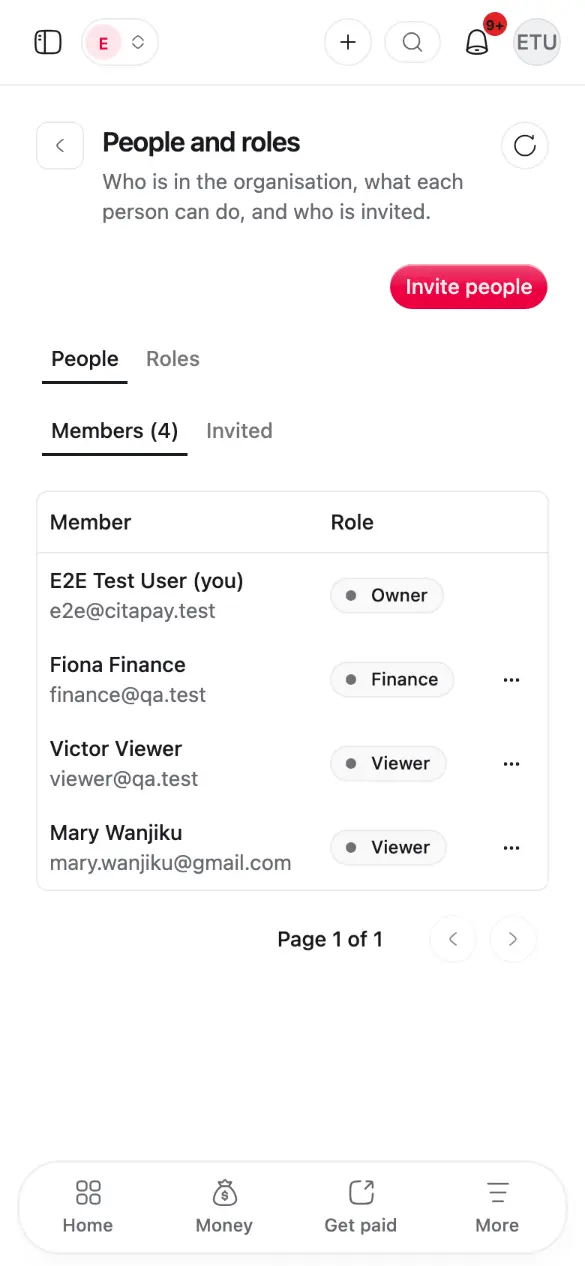
Everyone in the organisation is listed with their role.
- Step 4.
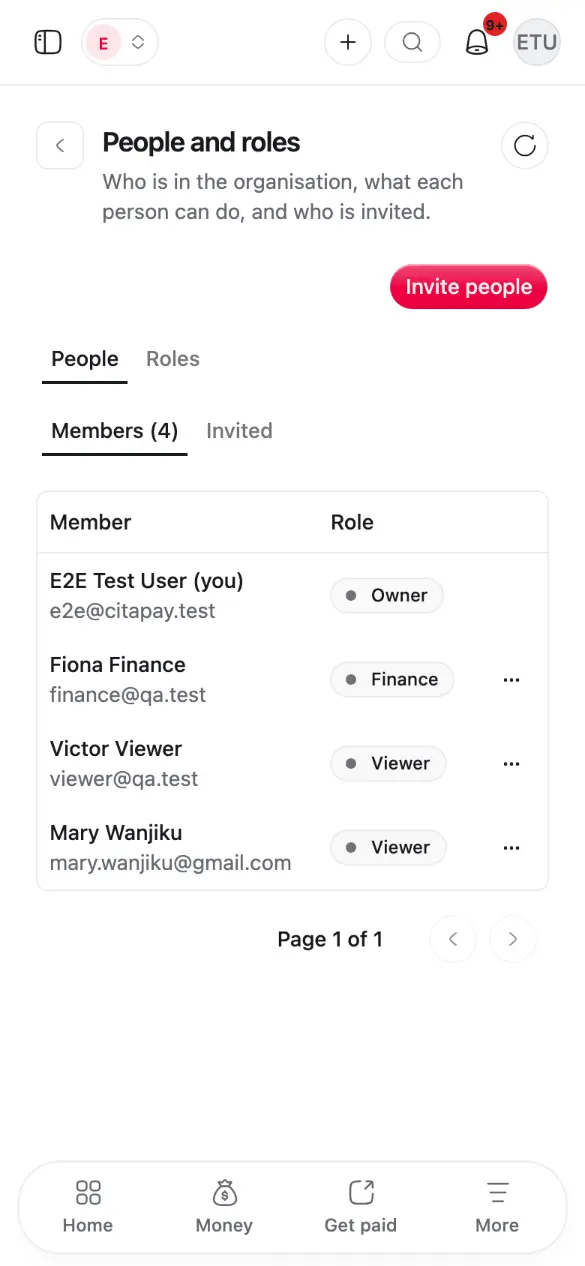
Tap Invite people
A short form opens.
- Step 5.
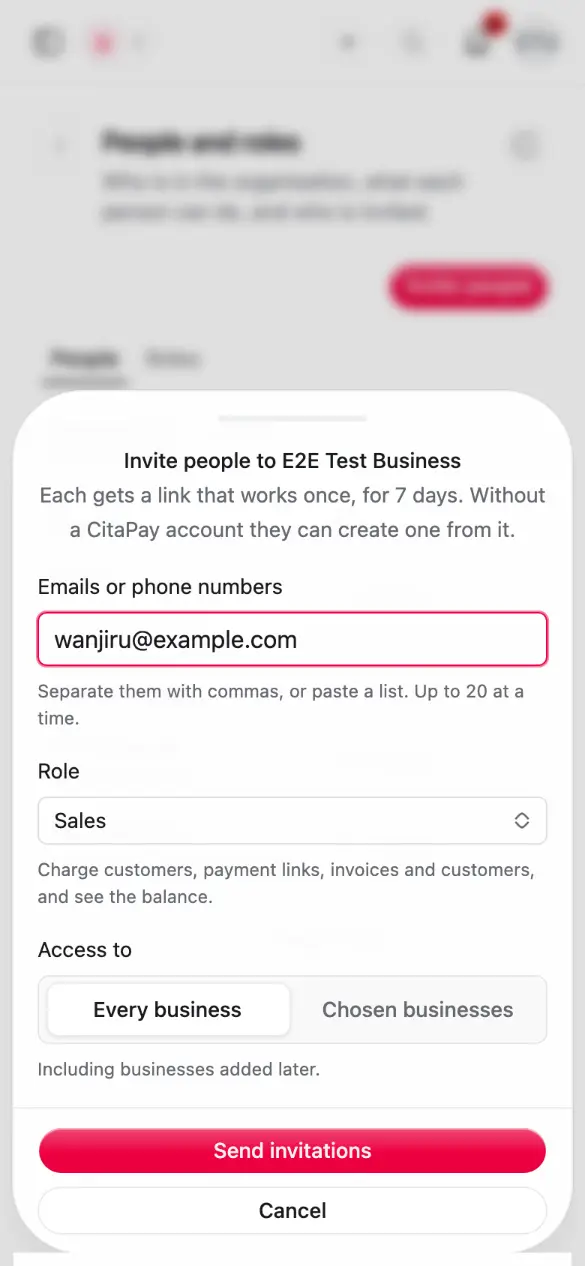
Type their email or phone number
Separate several with commas, up to 20 at a time.
Type in Emails or phone numbers, for example wanjiru@example.com
- Step 6.
Pick their role
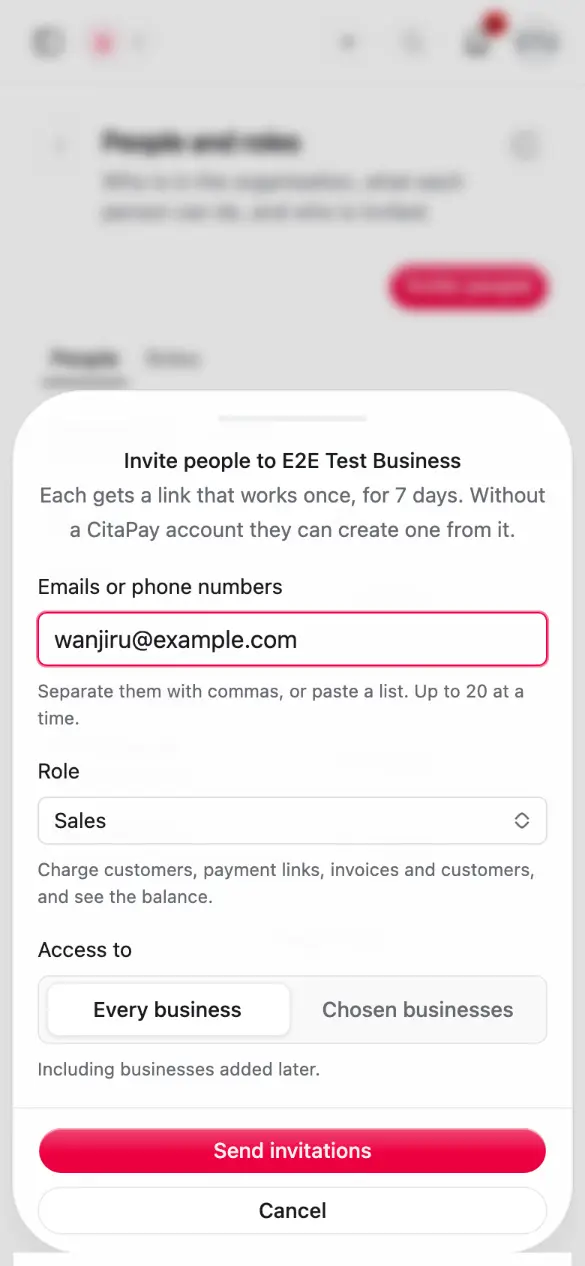
The text under the box says what the role can do. For example Sales takes payments and sends invoices; Finance can also pay out. You can also limit them to chosen businesses.
Tap Role
- Step 7.
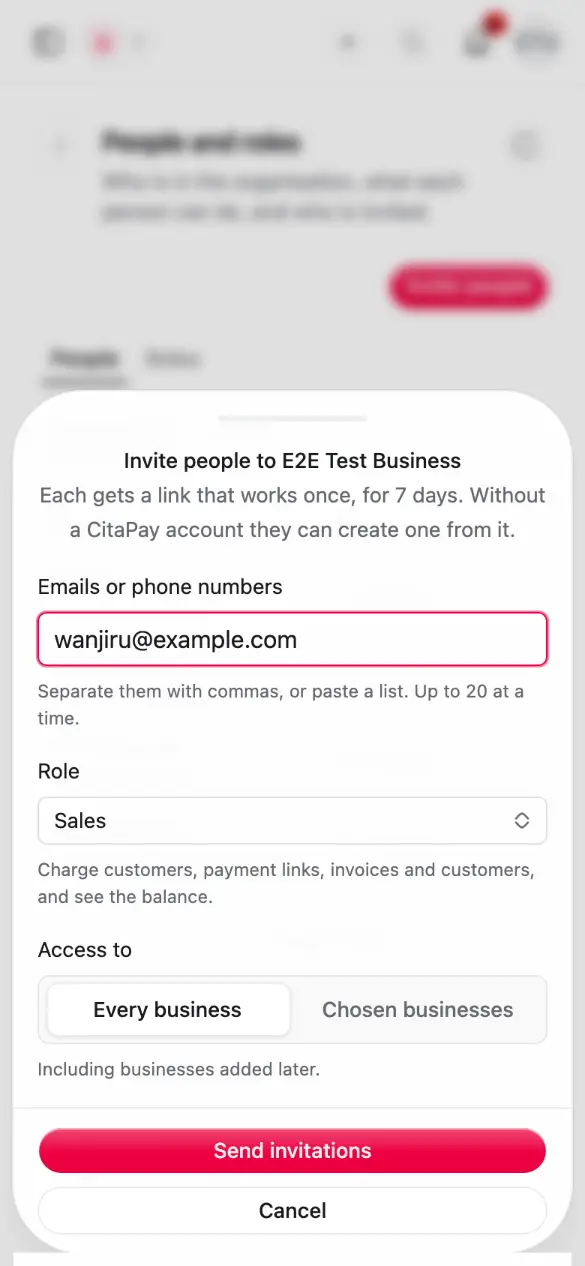
Tap Send invitations
They get a link by email or SMS that works once, for 7 days. It also waits under the bell and on Home when they sign in.
- Step 8.
Tap Open menu on a person to change their role or remove them
Next in set up your team
Approve payouts
Have a second person approve money going out.