Invoices
Bill for your work with an invoice that has a pay button built in.
- Step 1.
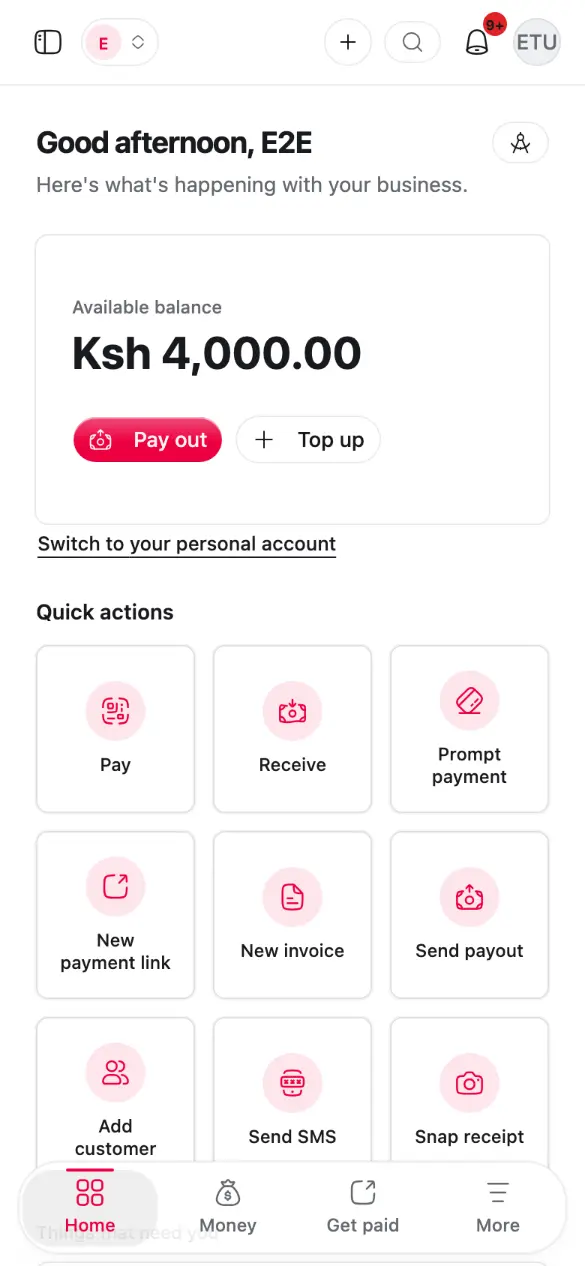
Tap Get paid
It is in the bar at the bottom of the screen.
- Step 2.
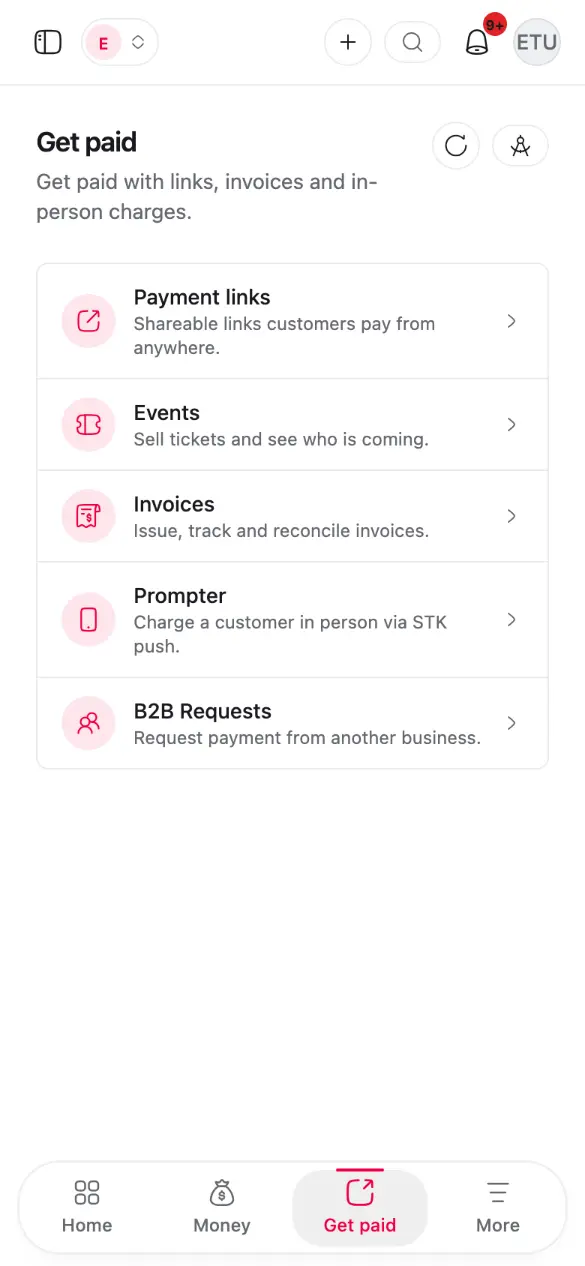
Tap Invoices
Your invoices are listed with their status.
- Step 3.
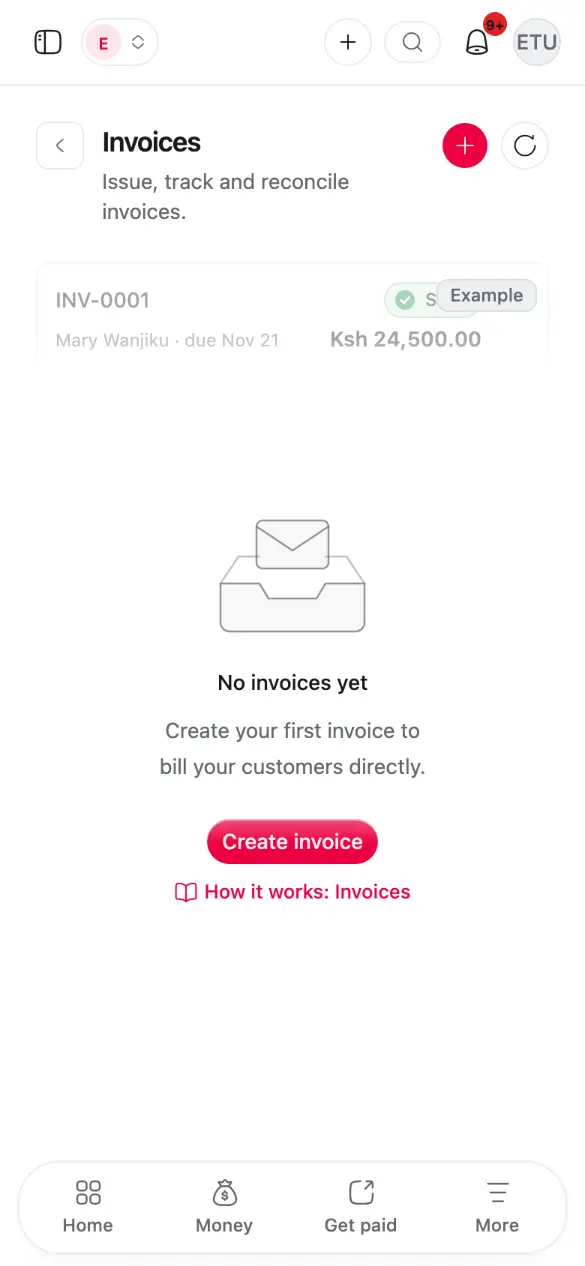
Tap New Invoice
A short form opens in four steps.
- Step 4.
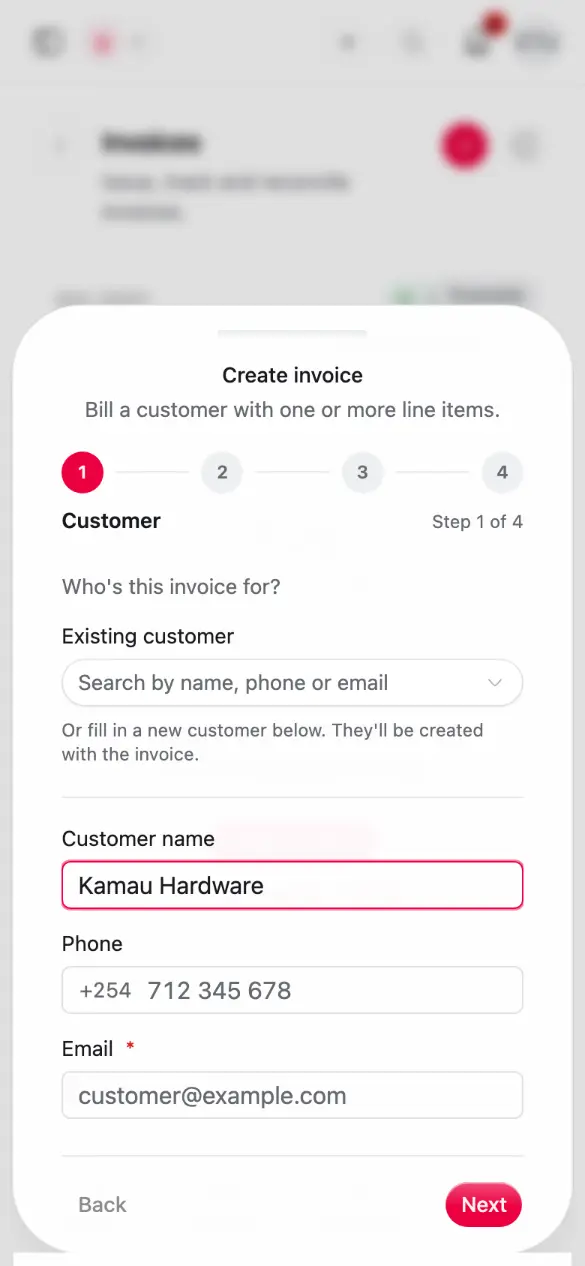
Type the customer's name
Billing someone you have billed before? Search for them under Existing customer instead and skip to Next.
Type in Customer name, for example Kamau Hardware
- Step 5.
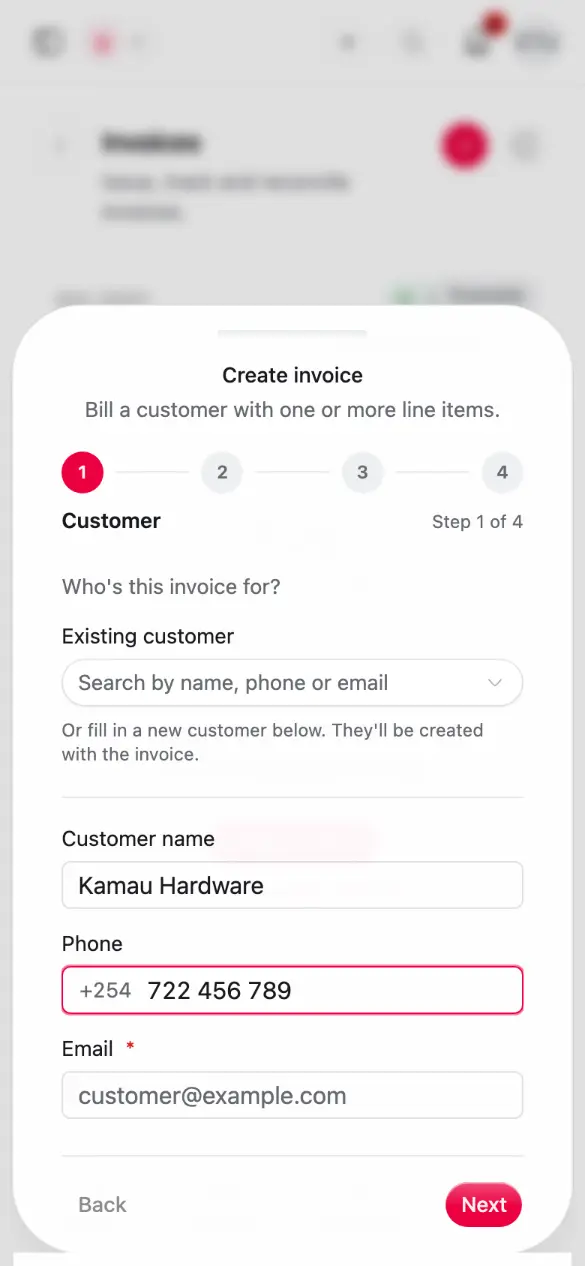
Type their phone number
Type in Phone, for example 722 456 789
- Step 6.
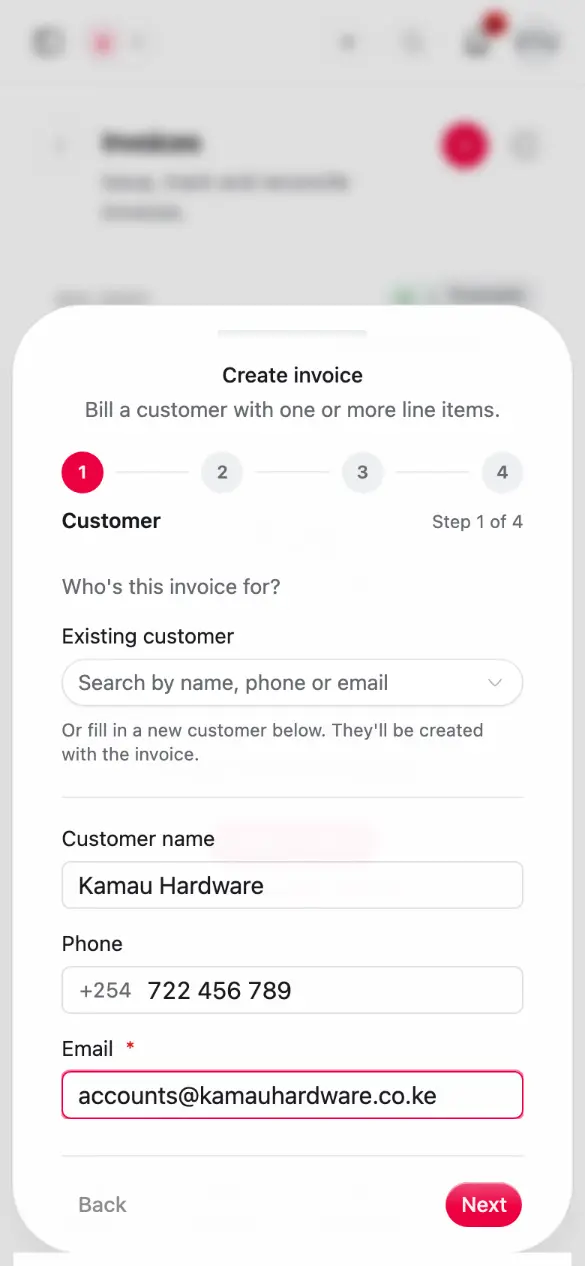
Type their email
The invoice and receipt are sent here.
Type in Email *, for example accounts@kamauhardware.co.ke
- Step 7.
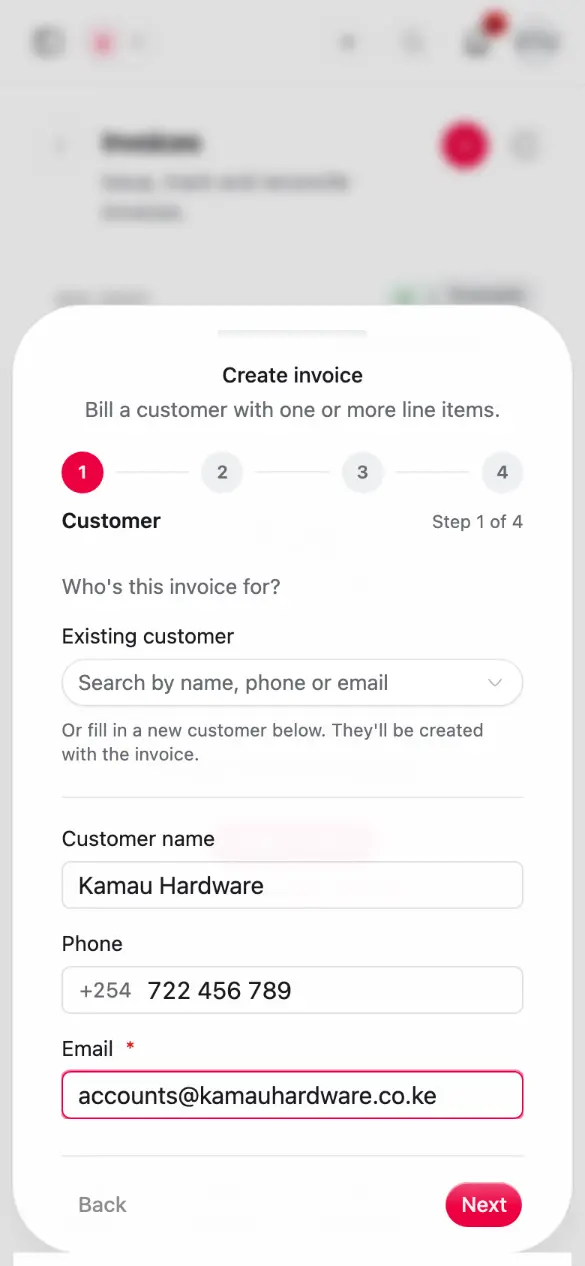
Tap Next
You add what you are billing for.
- Step 8.
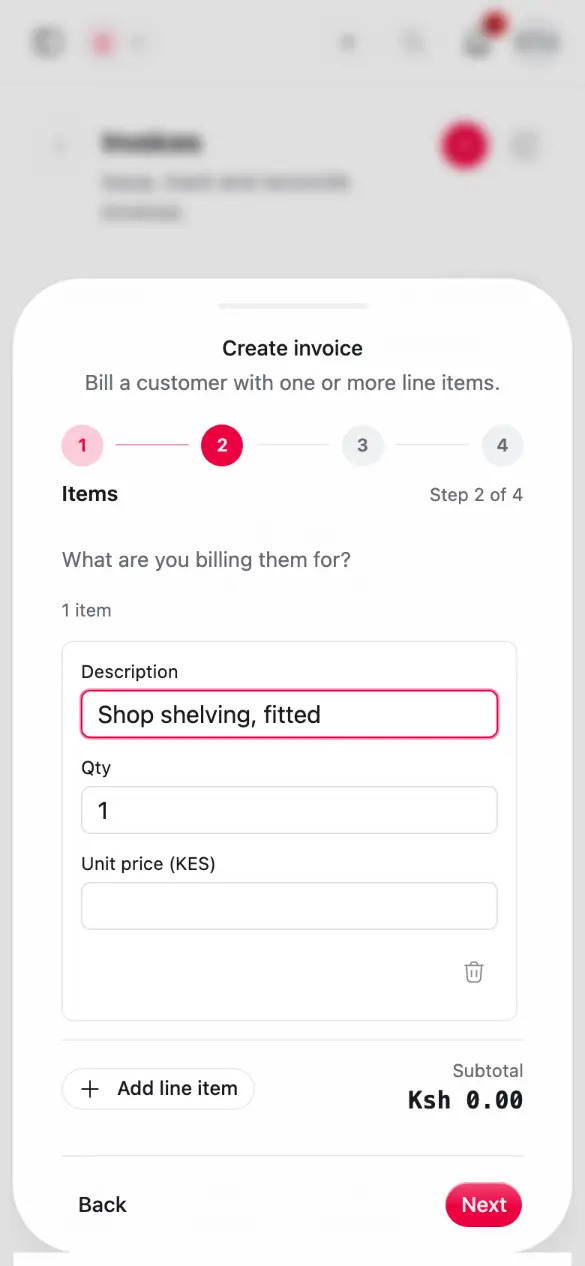
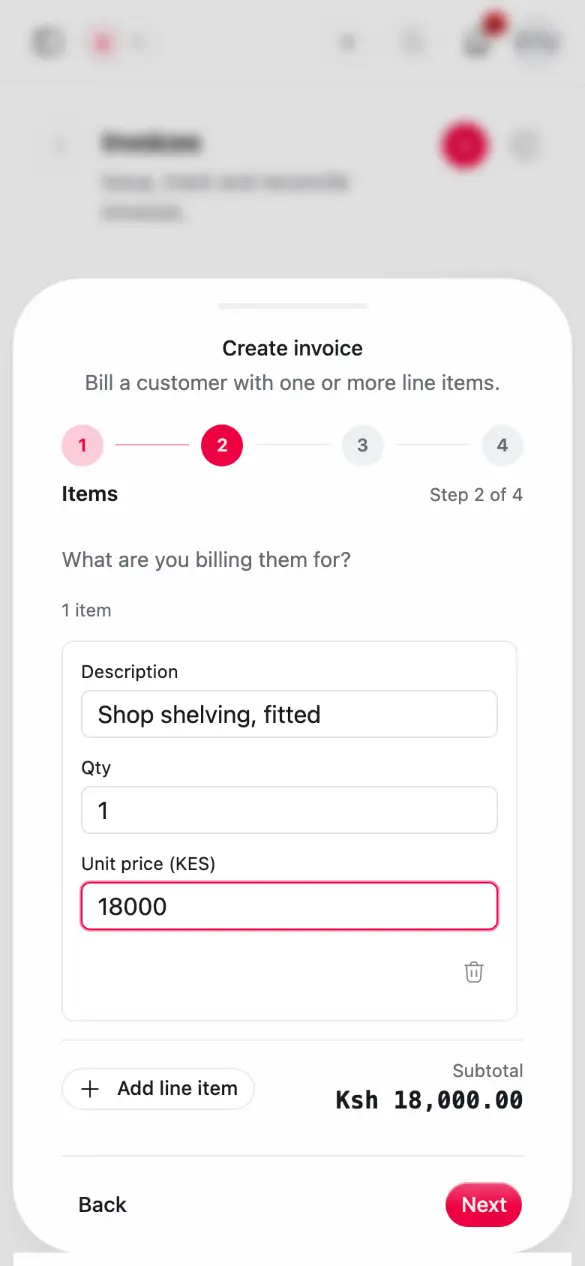
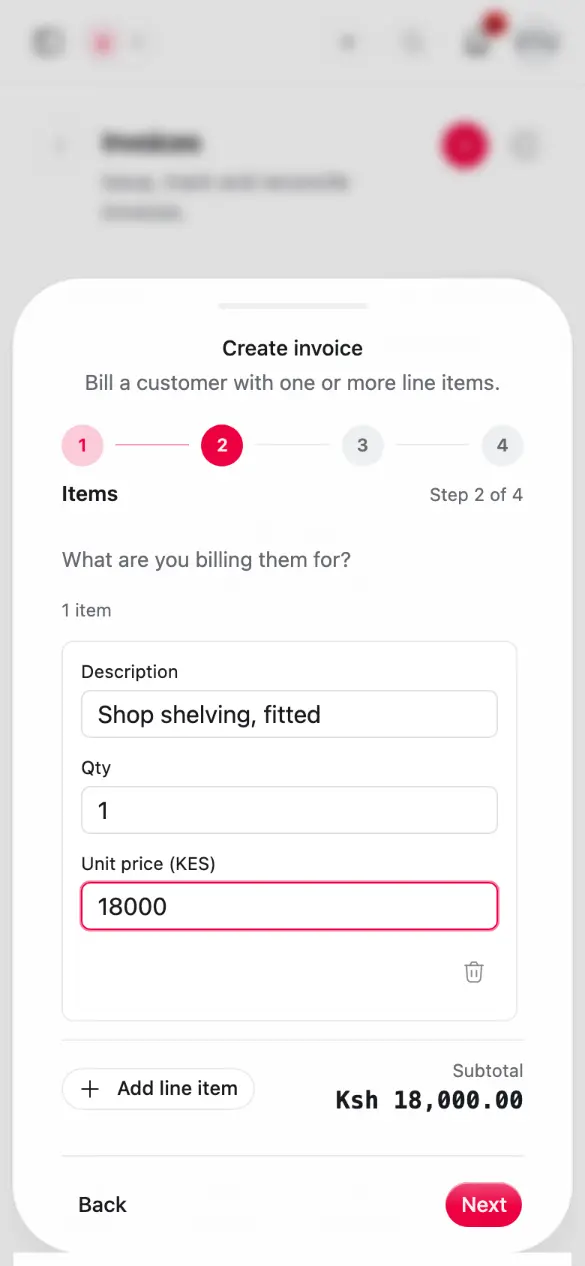
Describe the first item
Then set the quantity and the unit price. Tap Add line item for more.
Type in Service or product name, for example Shop shelving, fitted
- Step 9.
Type the unit price
Type in Unit price (KES), for example 18000
- Step 10.
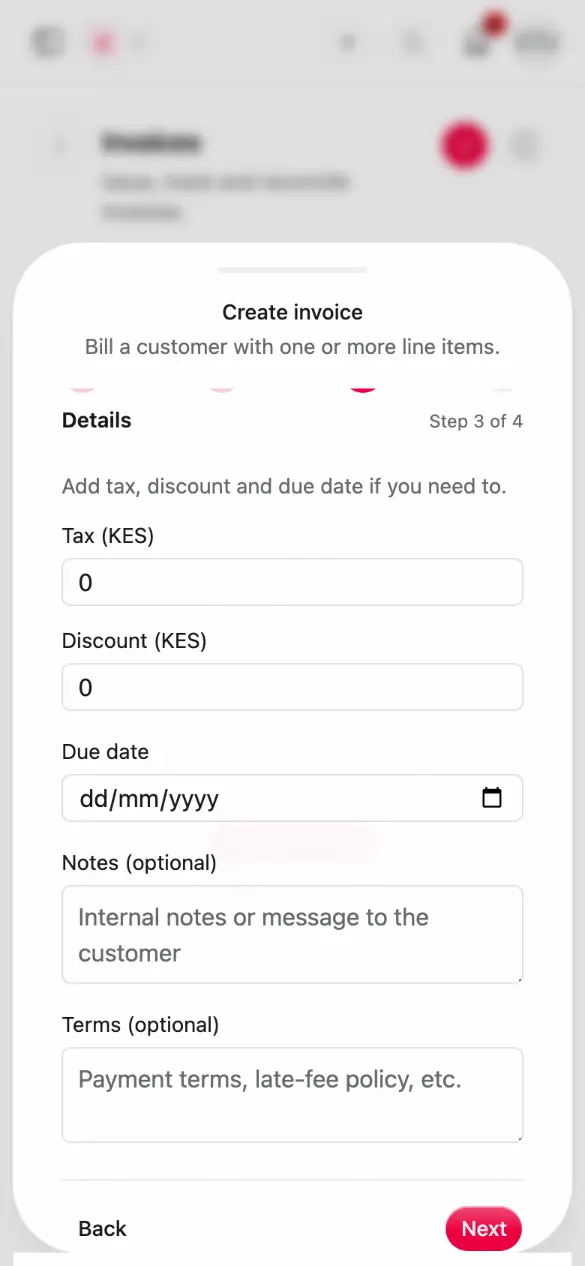
Tap Next
You can add tax, a discount and a due date. All are optional.
- Step 11.
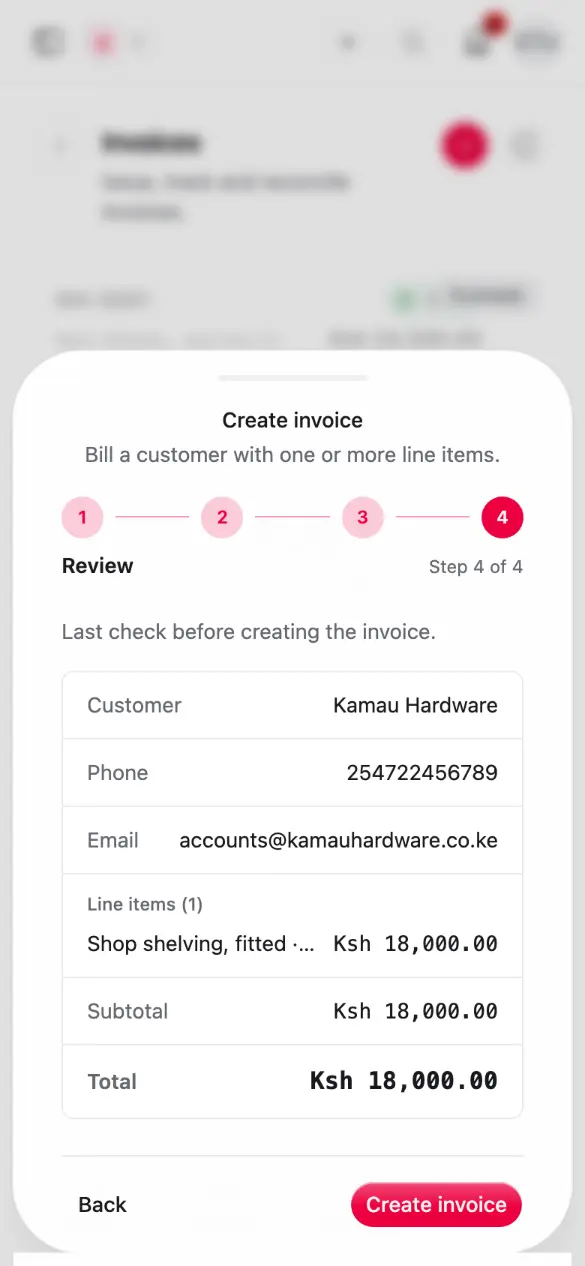
Tap Next again
A summary shows the customer, the items and the total.
- Step 12.
Tap Create invoice
The invoice is saved as a draft and opens, so you can check it before it goes out.
- Step 13.
Tap Send on the invoice
The customer gets an email with a pay button and pays by M-Pesa or card, without a CitaPay account. The invoice shows Paid as soon as the money arrives.