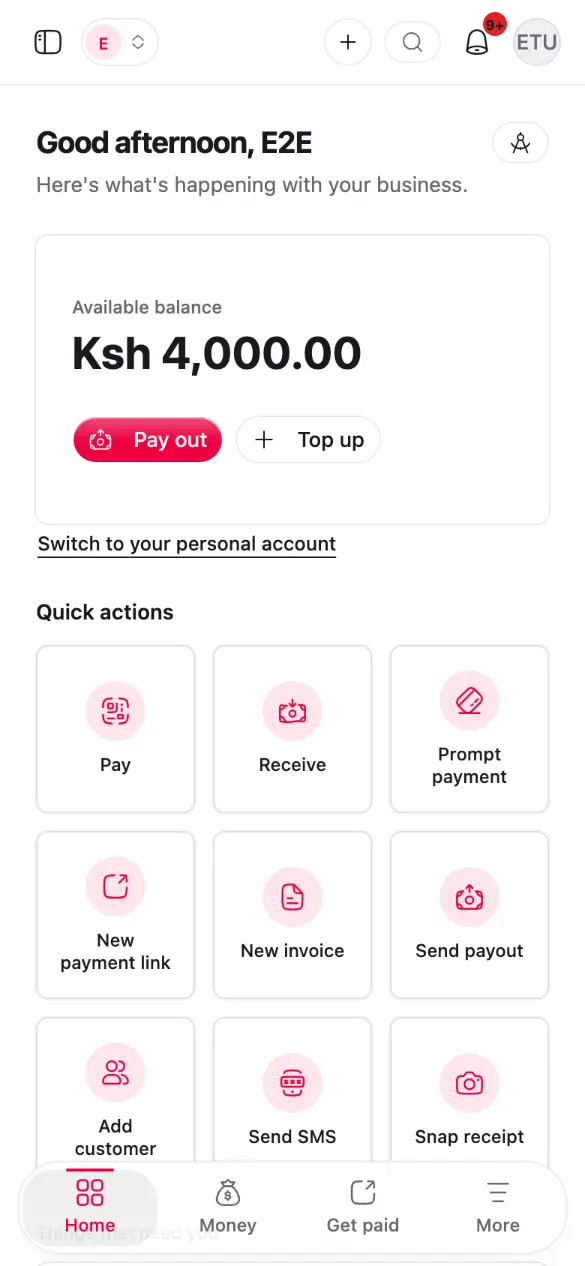
Your business at a glance
Your balance, what needs you today and your latest payments, on one screen.
- Step 1.
Check your available balance
Home is the first screen after you sign in. Available balance is the money you can pay out or spend now. Pay out and Top up sit right beside it.
Tap Available balance
- Step 2.
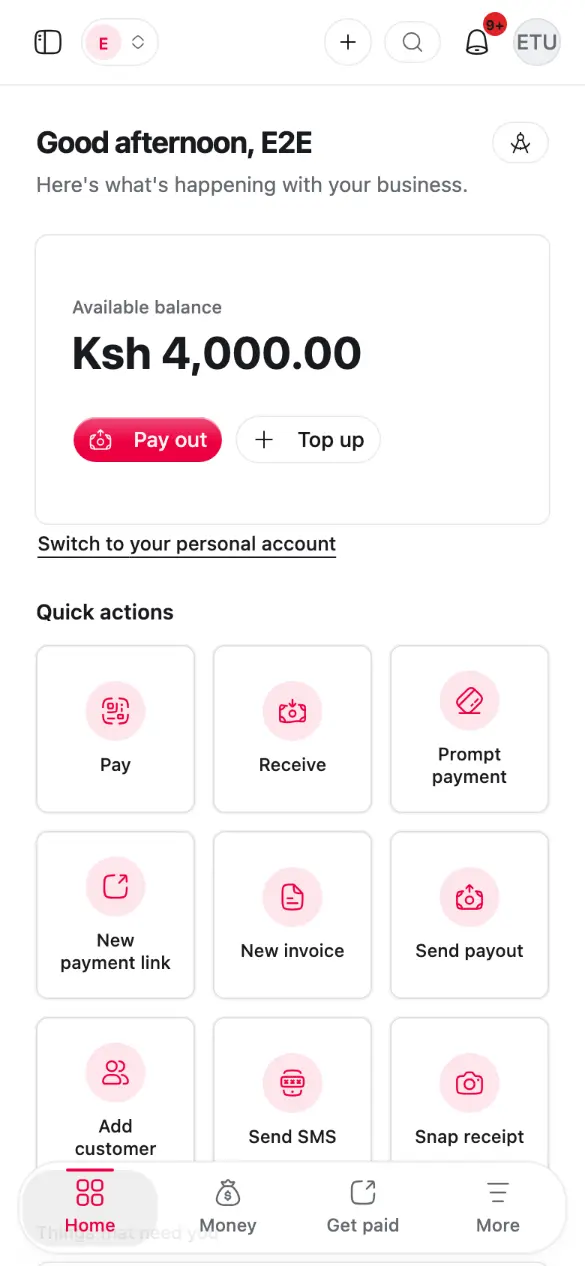
Use a quick action
Quick actions start the everyday jobs in one tap: take a payment, prompt a customer's phone, create a payment link or invoice, send a payout, add a customer or send an SMS.
Tap New invoice
- Step 3.
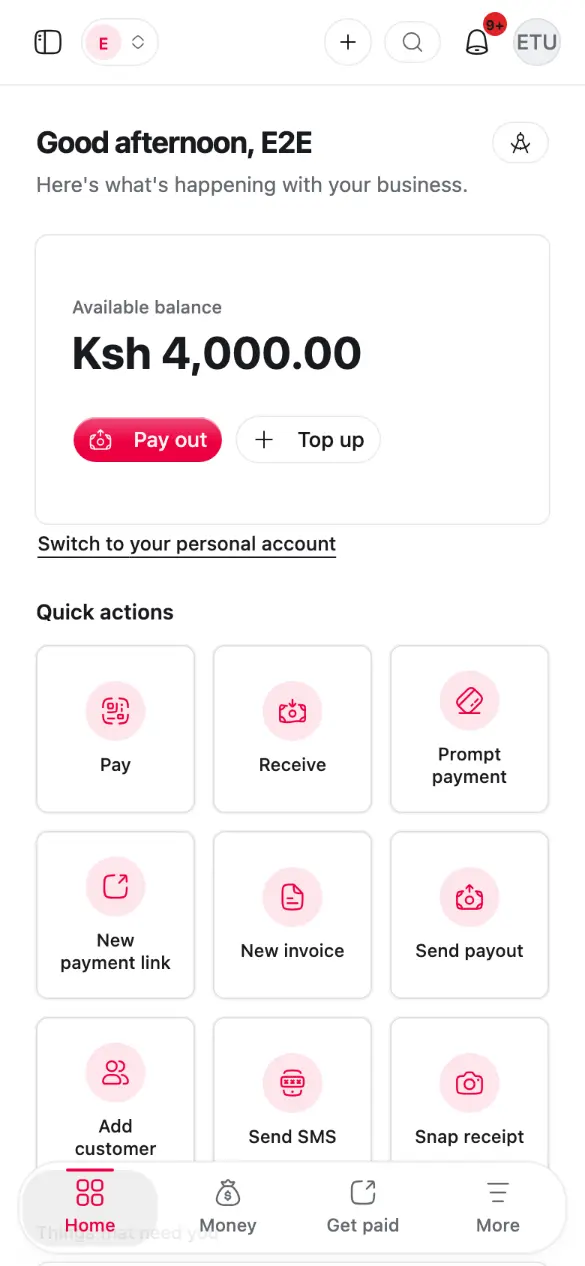
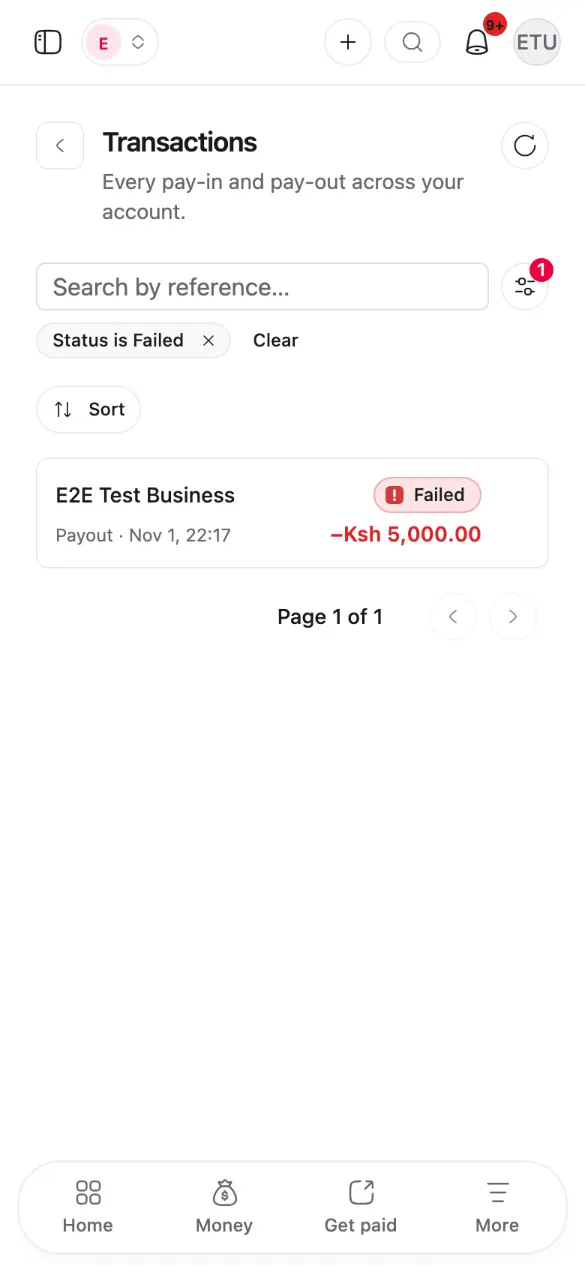
Tap View on anything that needs you
Things that need you lists what is waiting, such as an overdue invoice, a payout to approve or a payment that failed.
The page with those items opens, already filtered.
- Step 4.
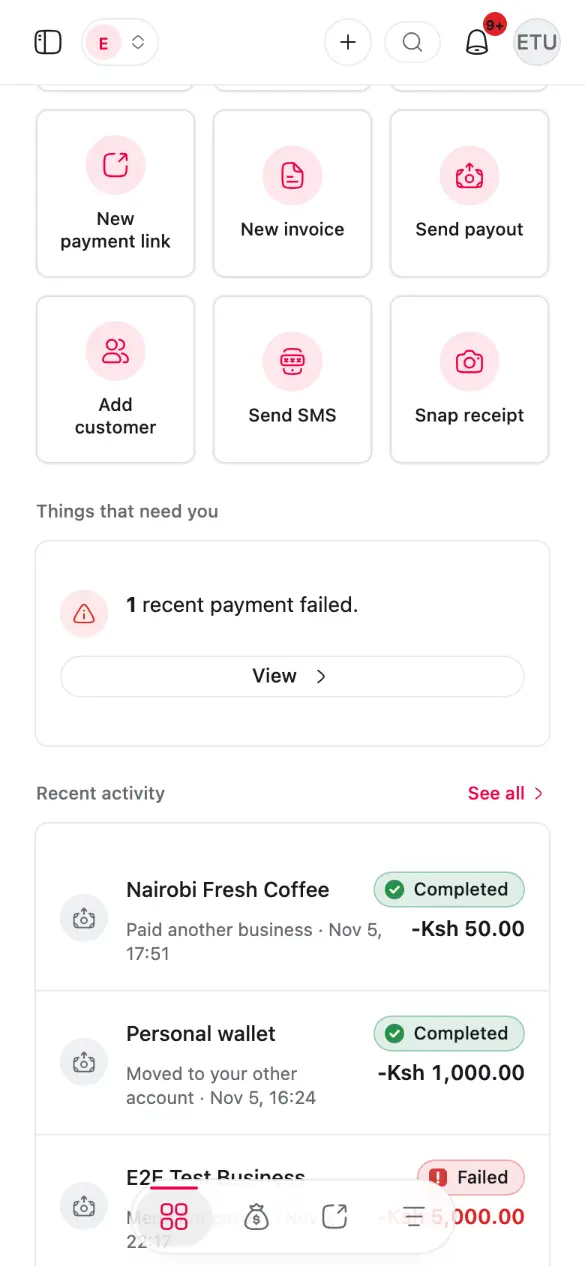
Tap Home to go back
It is in the bar at the bottom of the screen.
- Step 5.
Tap Switch to your personal account
If you also have a personal account, this moves you to it. Each keeps its own money, and the switch never moves money between them.