Your first day, step 2 of 6
Your business QR code
One @name, pay link and QR code that always pays your business.
- Step 1.
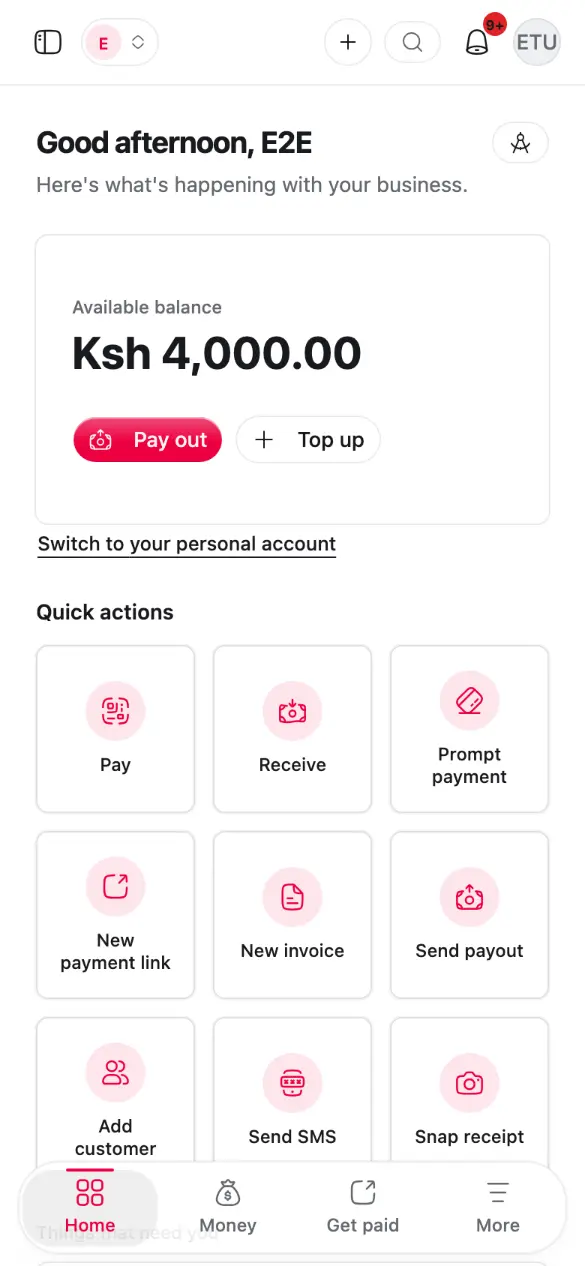
Tap More
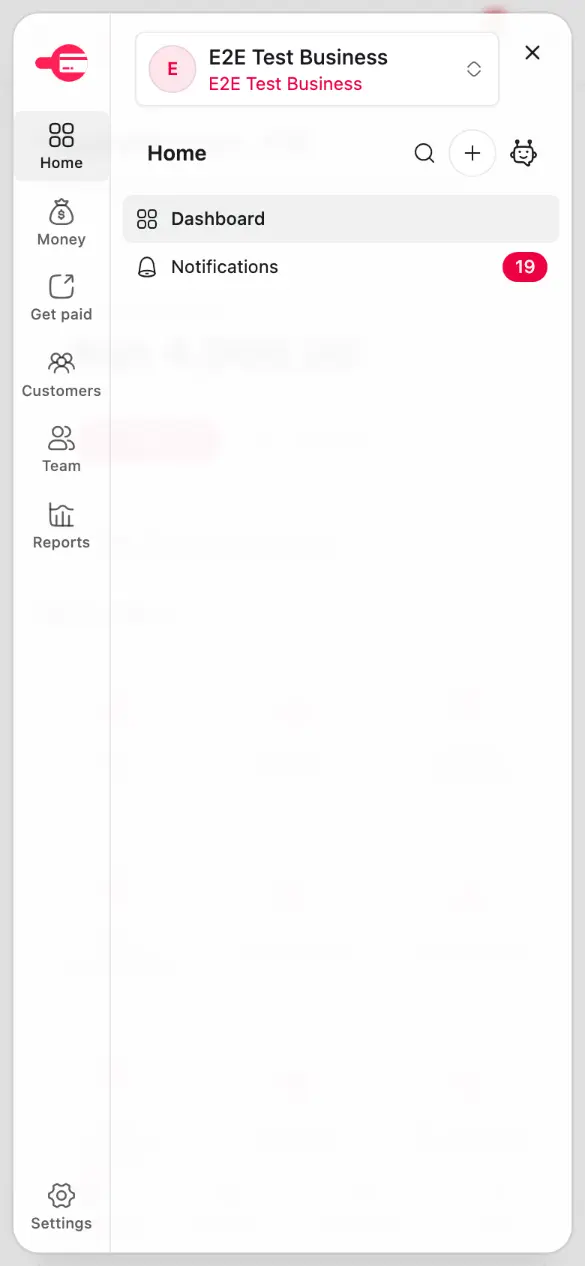
First pick your business @name. It is in Settings.
- Step 2.
Tap Settings
- Step 3.
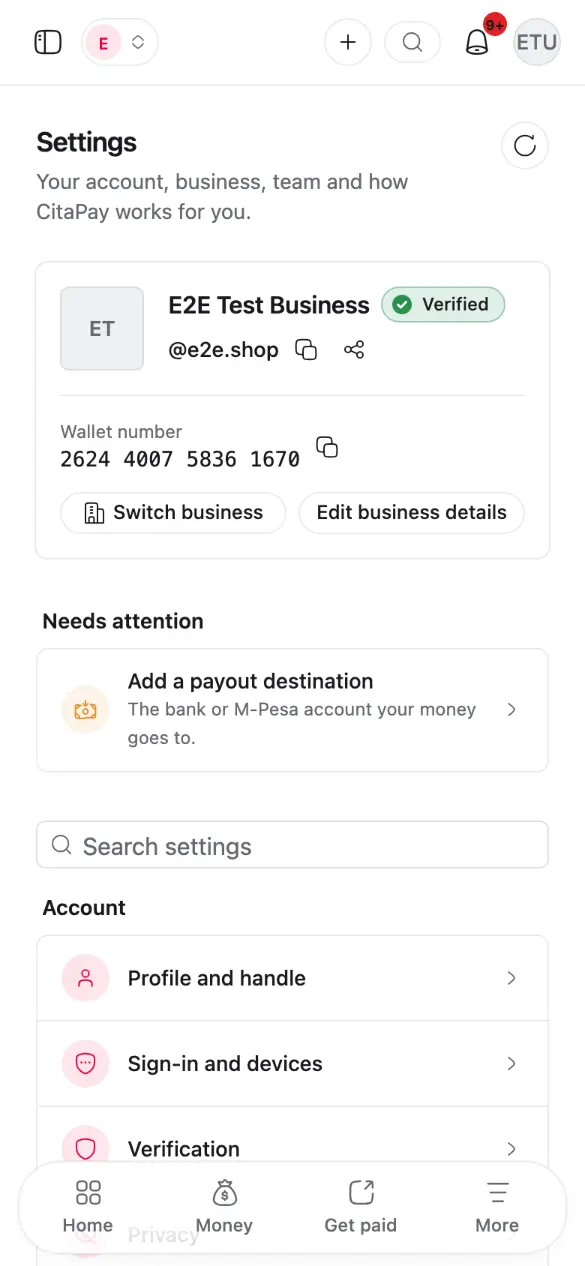
Tap Business details
- Step 4.
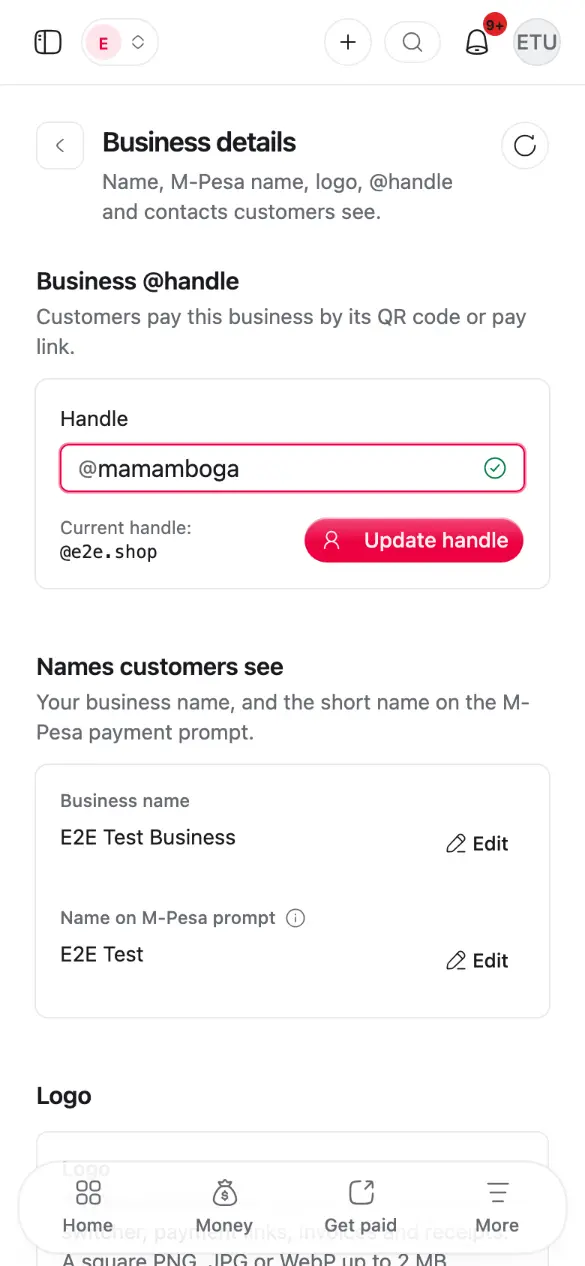
Type the @name you want
Short and easy to say works best, such as your shop name. It becomes the business pay link and QR code.
Type in Handle, for example mamamboga
- Step 5.
Tap Update handle
The QR code and pay link now use the new @name. Reprint any QR codes you put up before.
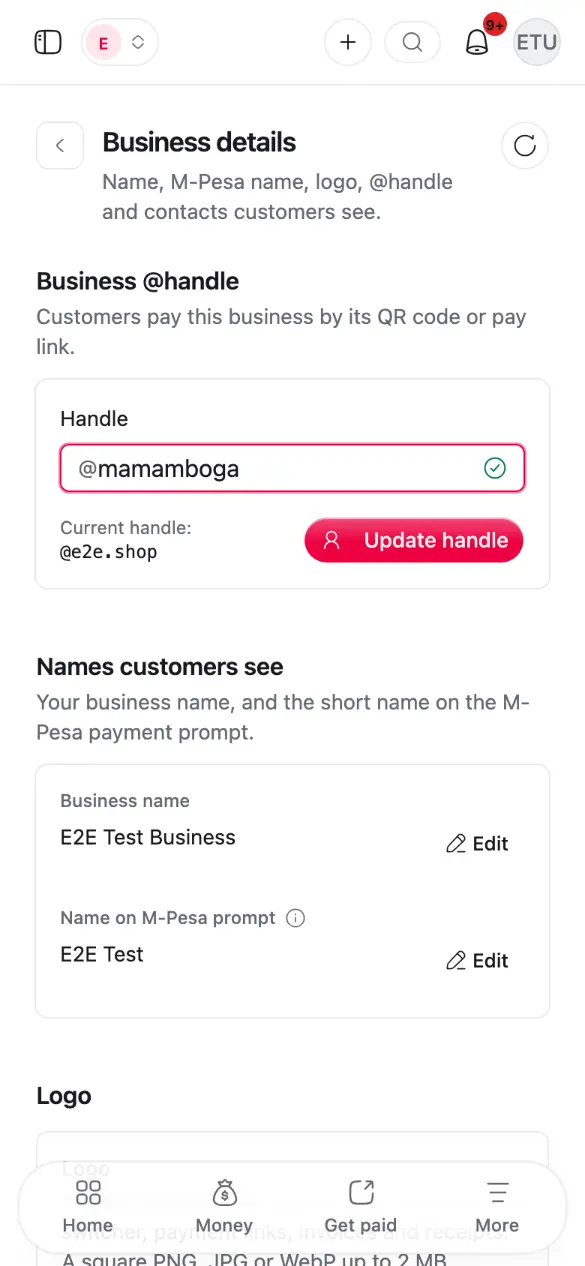
- Step 6.
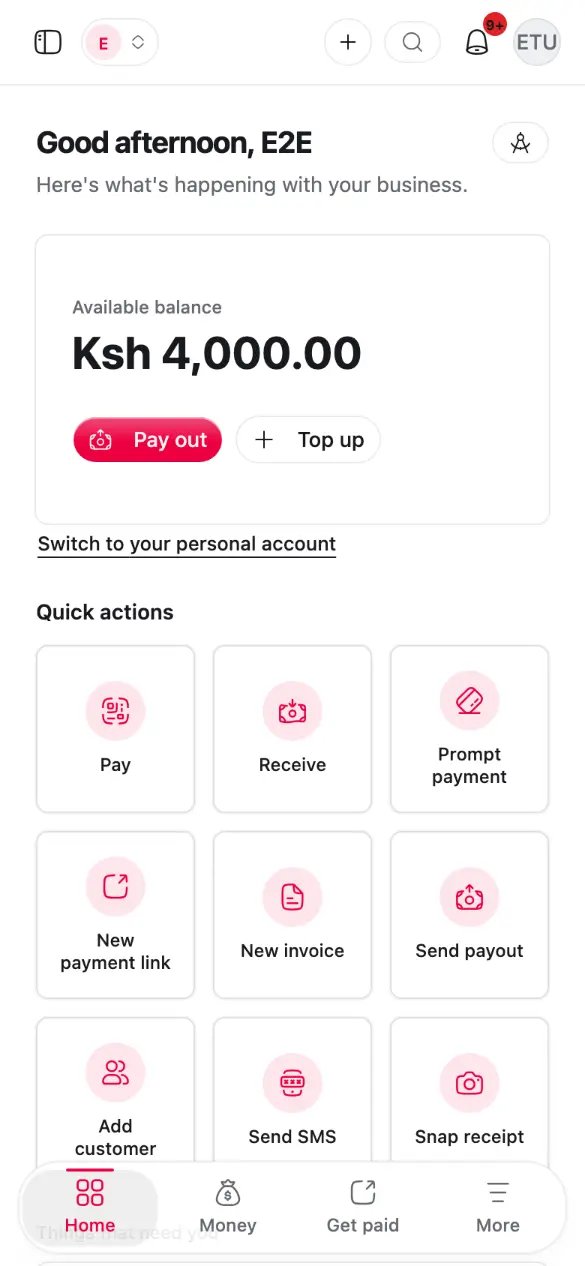
Tap Receive on Home
Go back to Home. Receive is the second quick action.
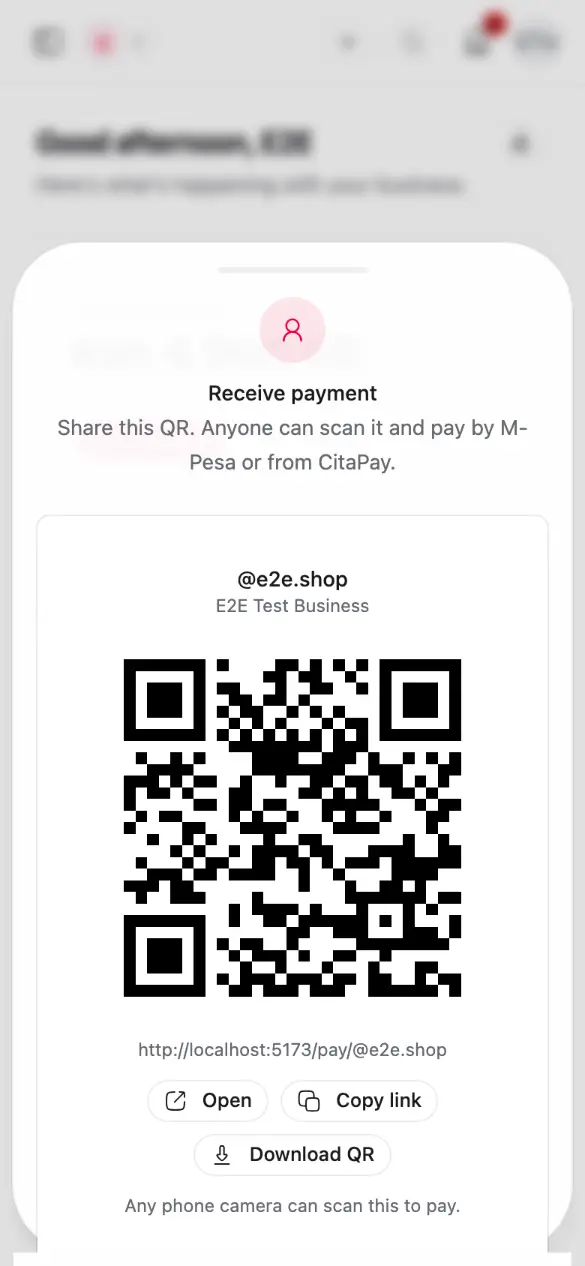
Your business QR code opens with its pay link.
- Step 7.
Tap Download QR to print it
Put it on your counter so customers can scan and pay by M-Pesa, with no CitaPay account needed. Copy link shares the same page by WhatsApp or SMS.
Next in your first day
Payment links
A link you can send to take your first payment.