Your first day, step 5 of 6
Take payments at your counter
Your till code lets customers pay from the M-Pesa menu with CitaPay's paybill and your own account number.
- Step 1.
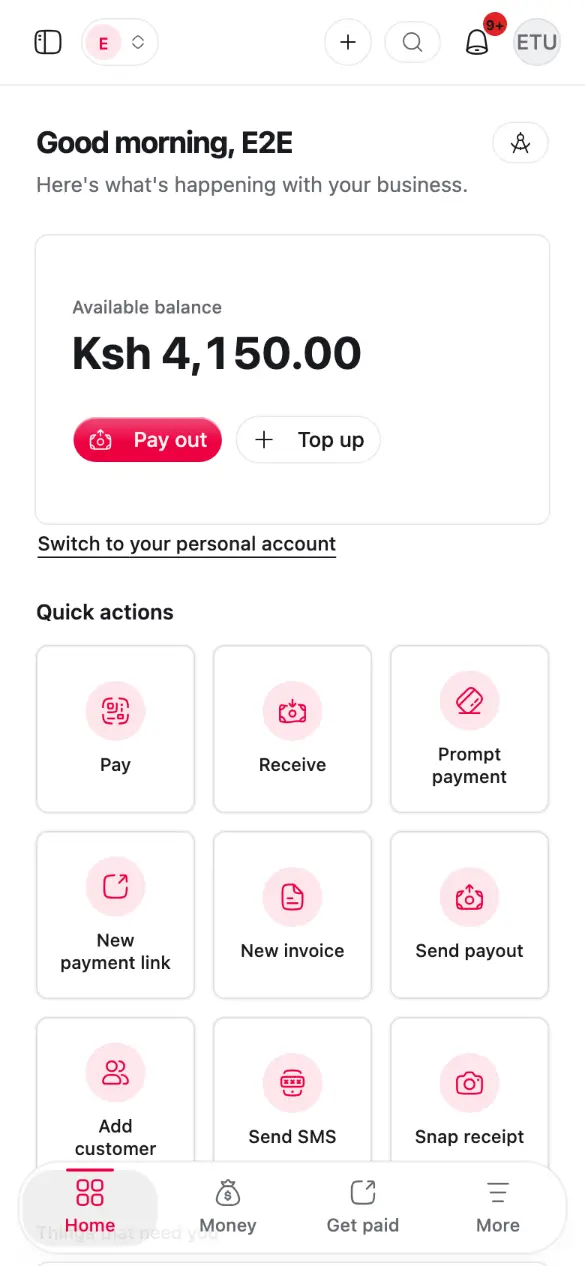
Tap Get paid
It is in the bar at the bottom of the screen.
- Step 2.
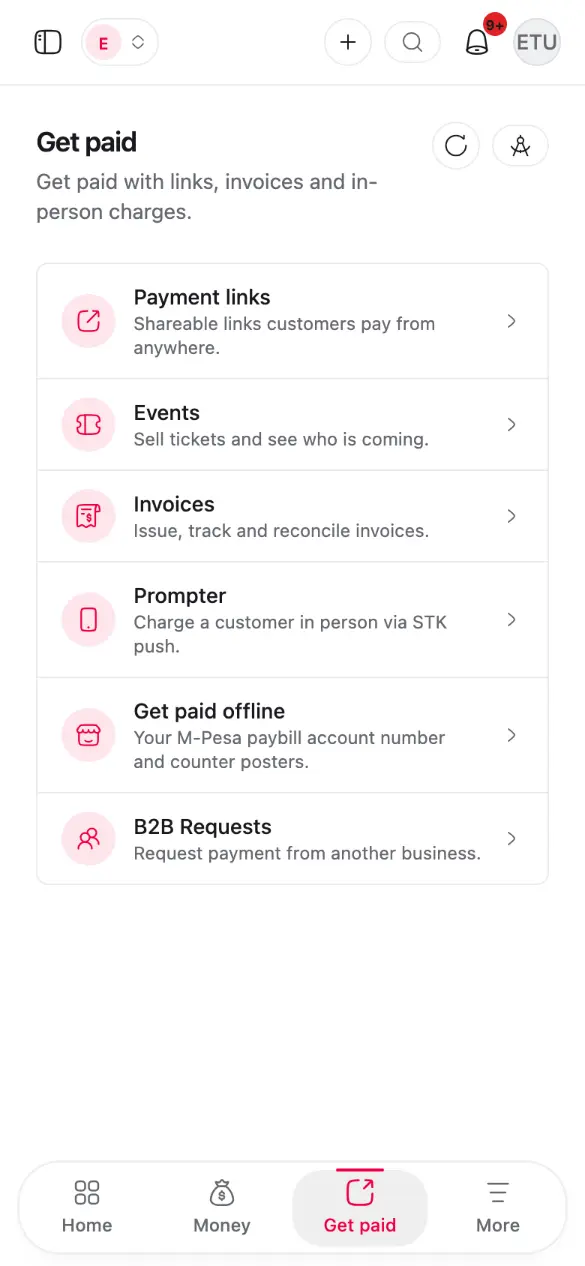
Tap Get paid offline
Your paybill number and account number (your till code) show, with posters to print.
- Step 3.
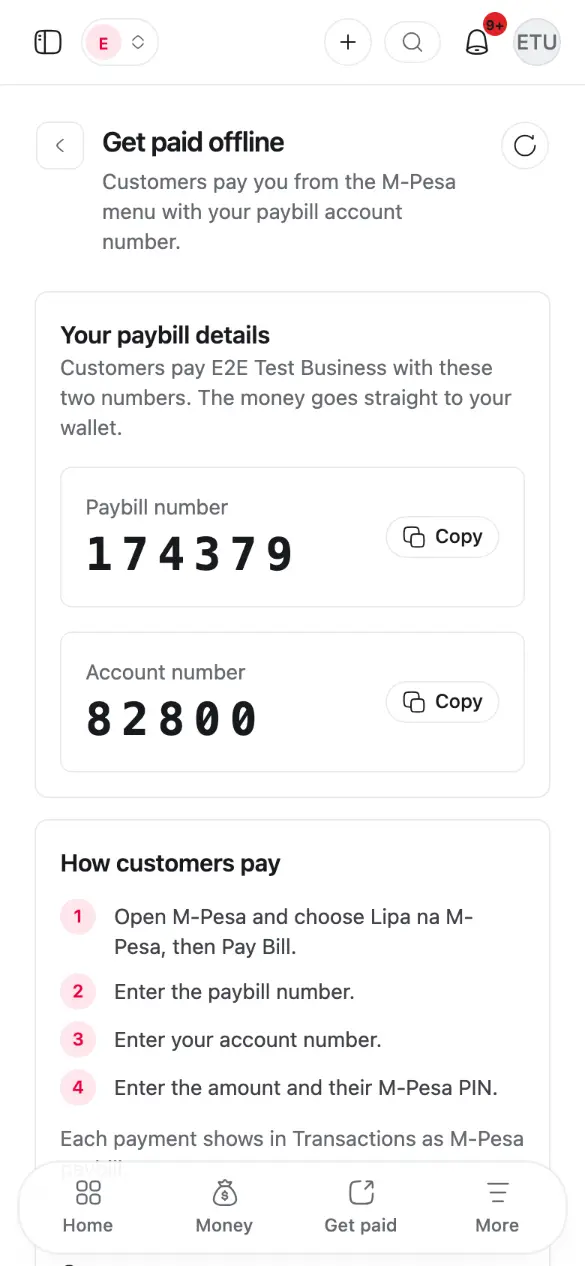
Tap Copy next to the account number
Send it to a customer by SMS or WhatsApp, or say it out loud. They pick Lipa na M-Pesa, then Pay Bill, and enter both numbers.
Tap Copy account number
- Step 4.
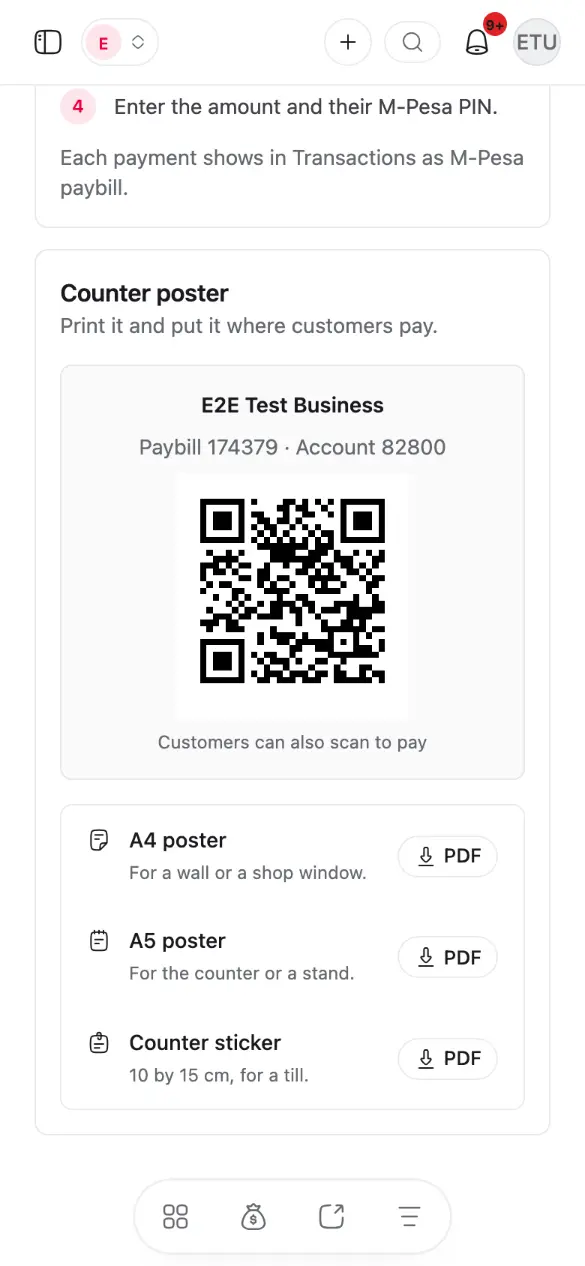
Tap PDF next to A4 poster
The poster has your business name, both numbers and a code to scan. A5 and a counter sticker are below it.
Tap Download A4 poster
The poster downloads. Print it and put it where customers pay.
Next in your first day
Pay out your money
Move what you took to M-Pesa.