Your first integration, step 3 of 5
Test mode
Try every flow end to end without real money.
- Step 1.
Tap Introduction to open the menu
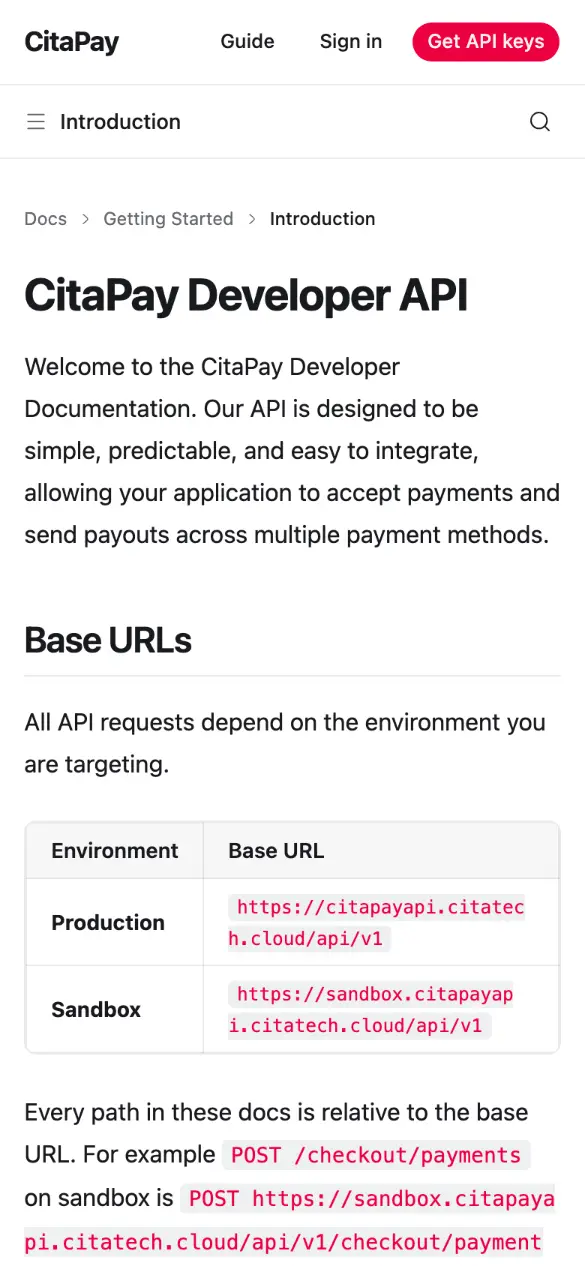
- Step 2.
Tap Testing Guide
Everything about testing, step by step.
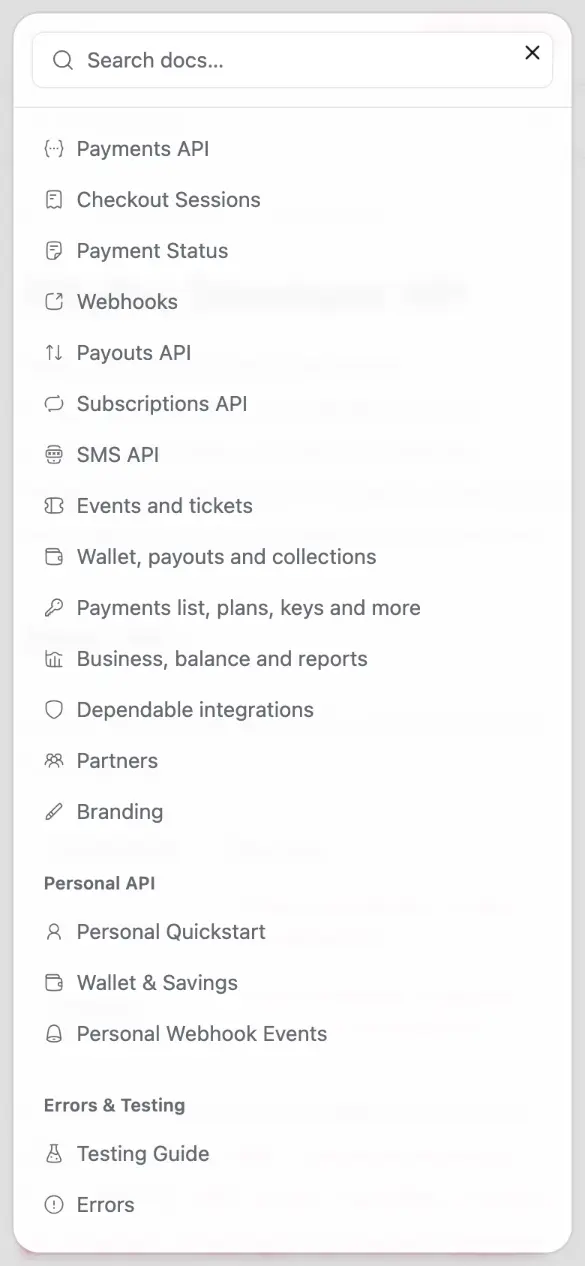
- Step 3.
Use a test key
Payments made with a test key (sk_test_) never touch real money.
Tap Test Mode Overview
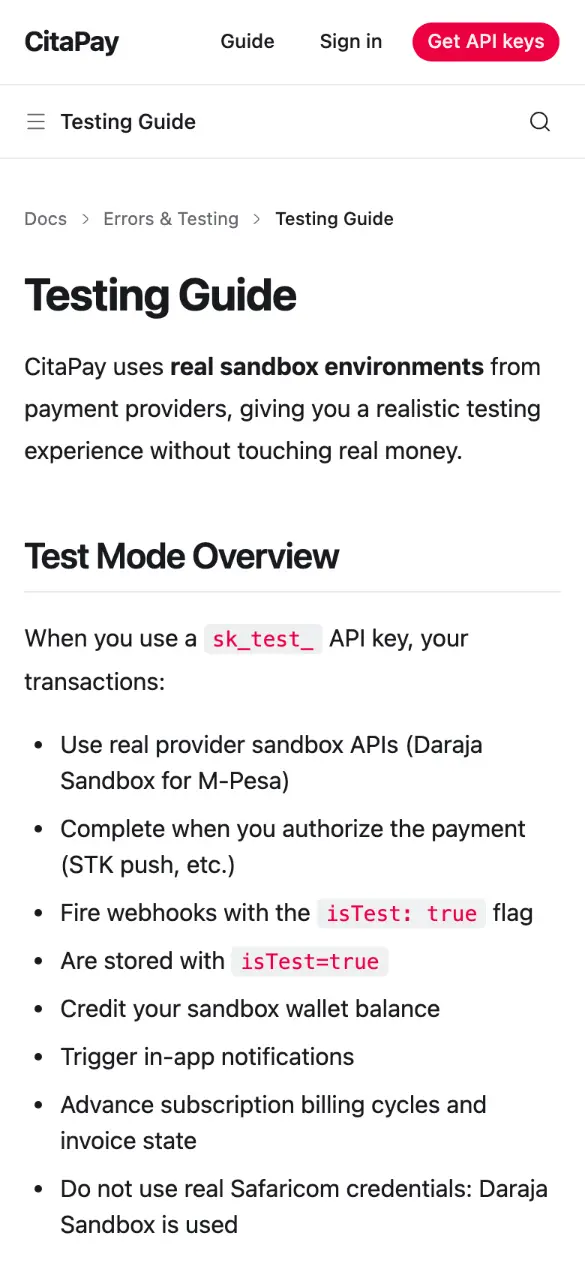
- Step 4.
Decide each test payment's result
There is no real phone to approve a test payment, so you mark it complete or failed with the sandbox endpoints.
Tap Testing M-Pesa Payments
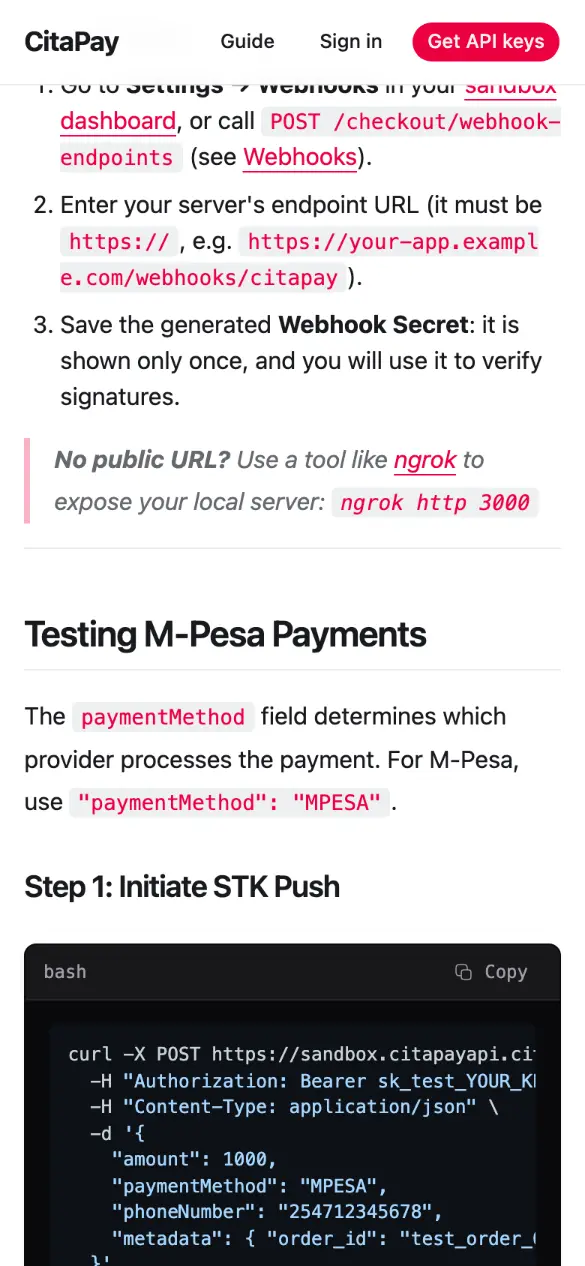
- Step 5.
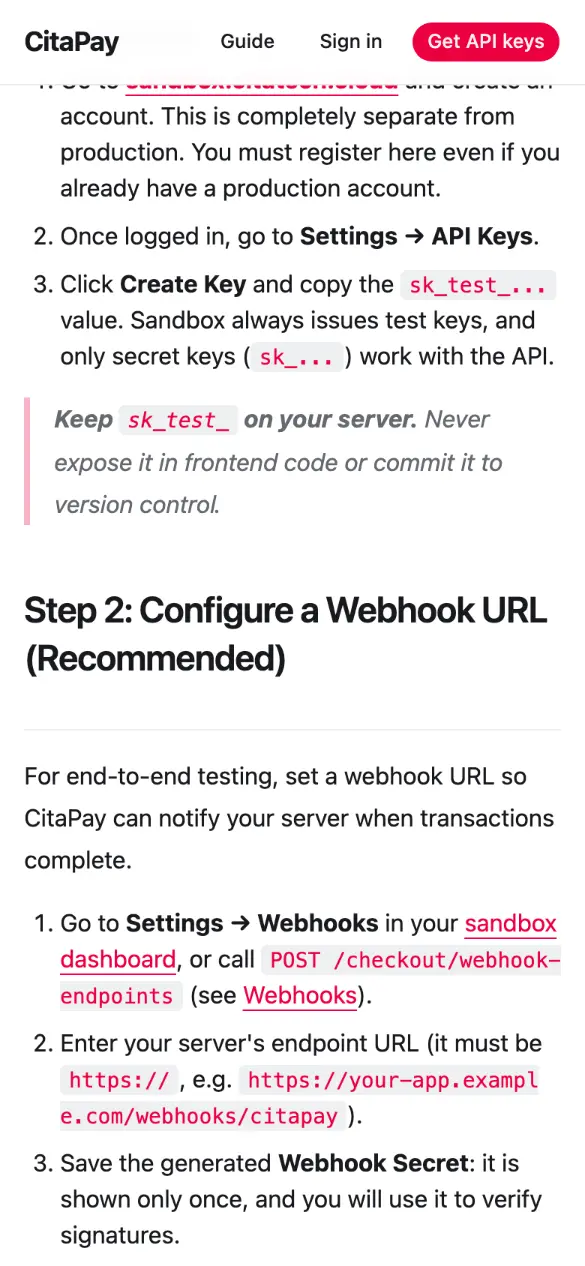
Point a webhook at your test server
The same events and webhooks fire as in live mode, so you can test success and failure before going live.
Tap Step 2: Configure a Webhook URL (Recommended)
Next in your first integration
Take payments from your app
Charge a customer by M-Pesa from your app.