Savings goals
Set money aside for something, with a target, so you do not spend it by accident.
- Step 1.
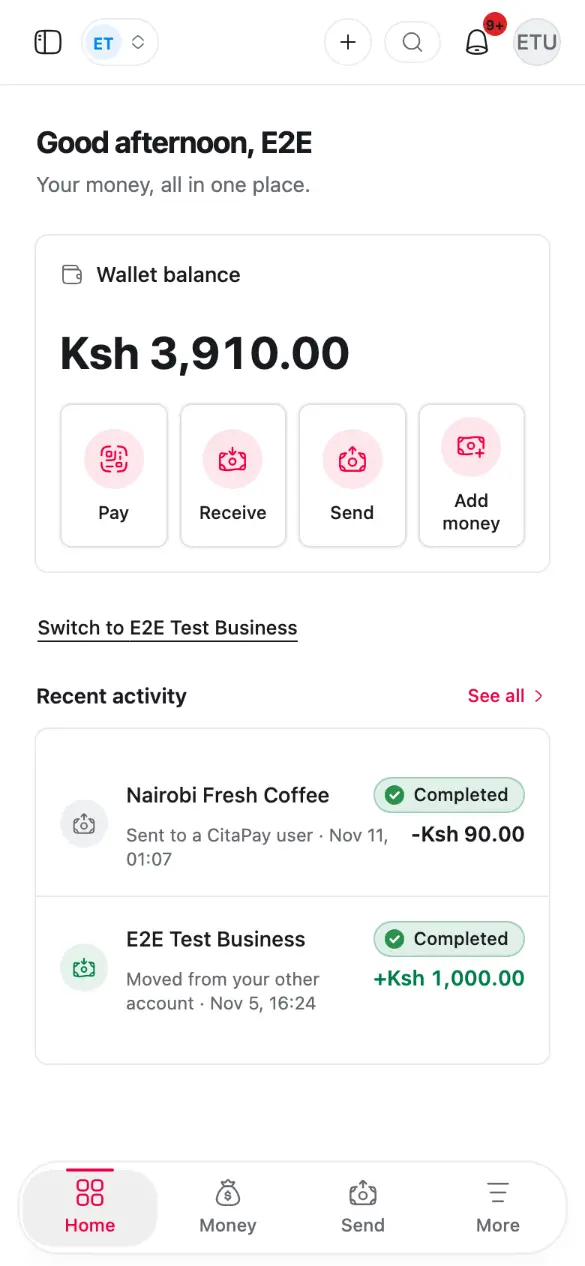
Tap More
It is at the right of the bar at the bottom of the screen.
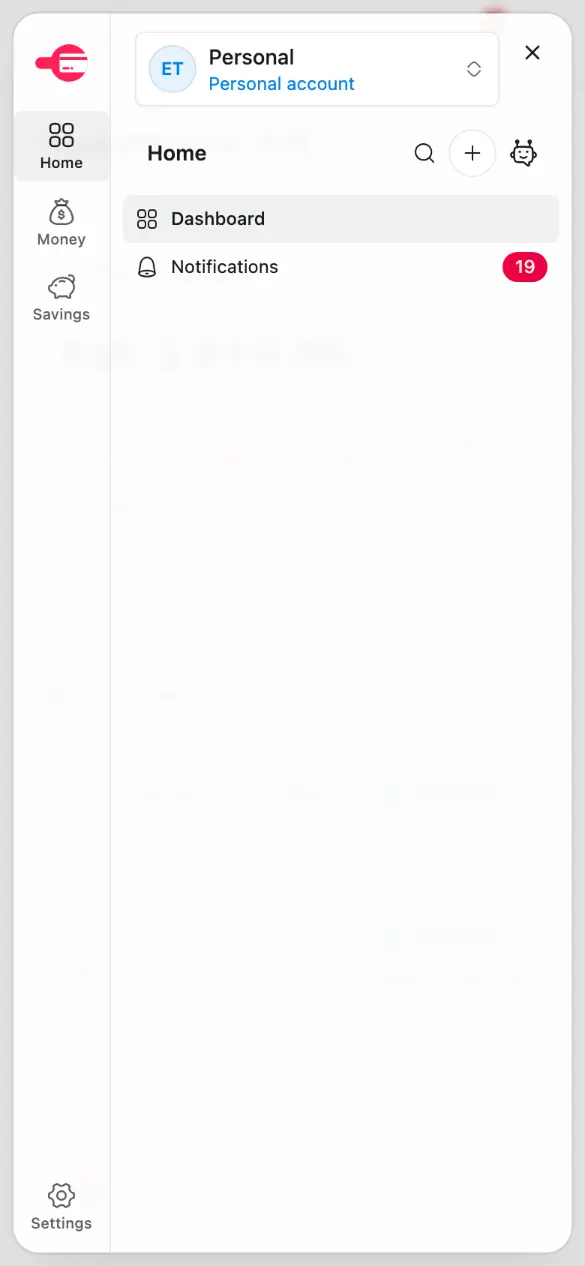
- Step 2.
Tap Savings
Your savings goals are listed.
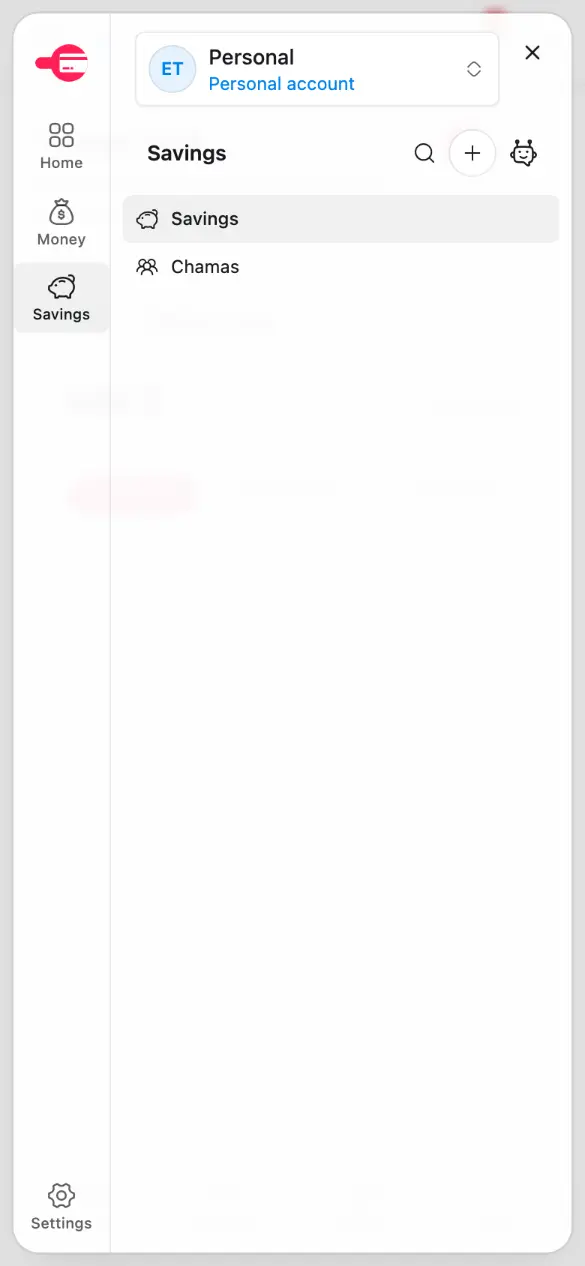
- Step 3.
Tap Savings again
- Step 4.
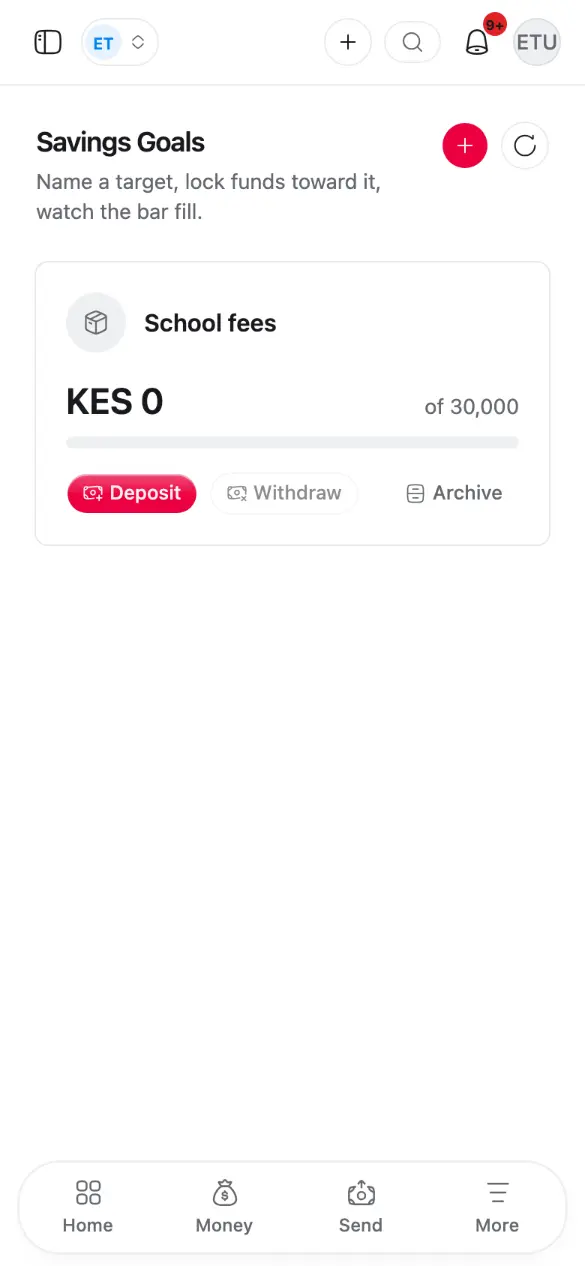
Tap New goal
A short form opens.
- Step 5.
Name the goal
Pick a name you will recognise, such as what you are saving for.
Type in Name, for example School fees
- Step 6.
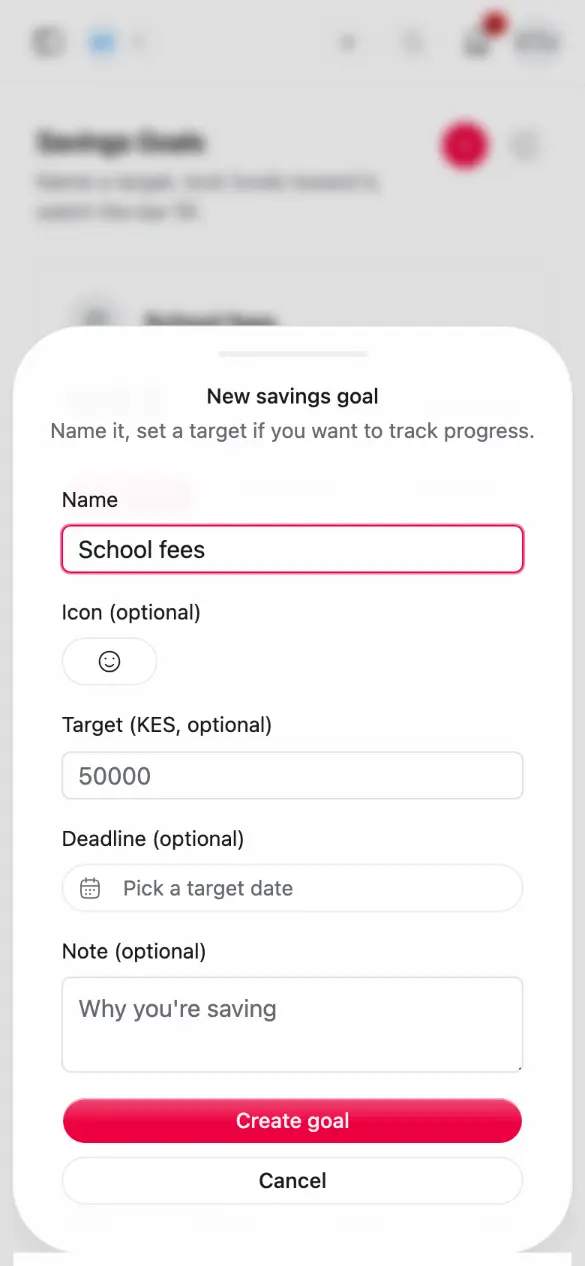
Type a target, if you want one
With a target you see a bar fill as you save. You can also pick a date and an icon.
Type in Target (KES, optional), for example 30000
- Step 7.
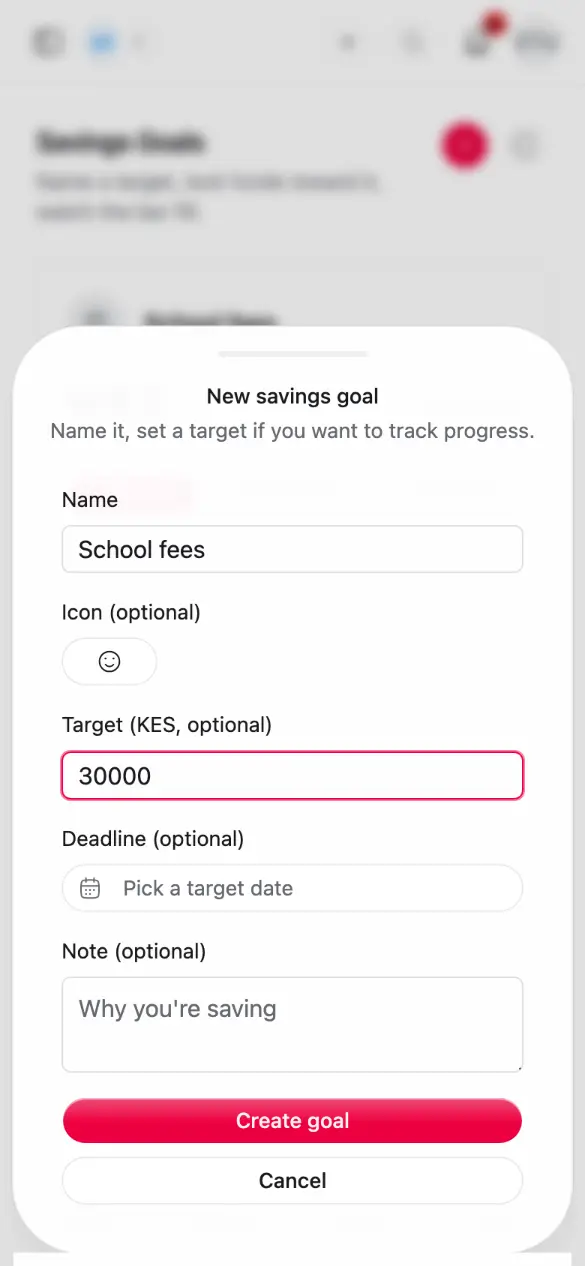
Tap Create goal
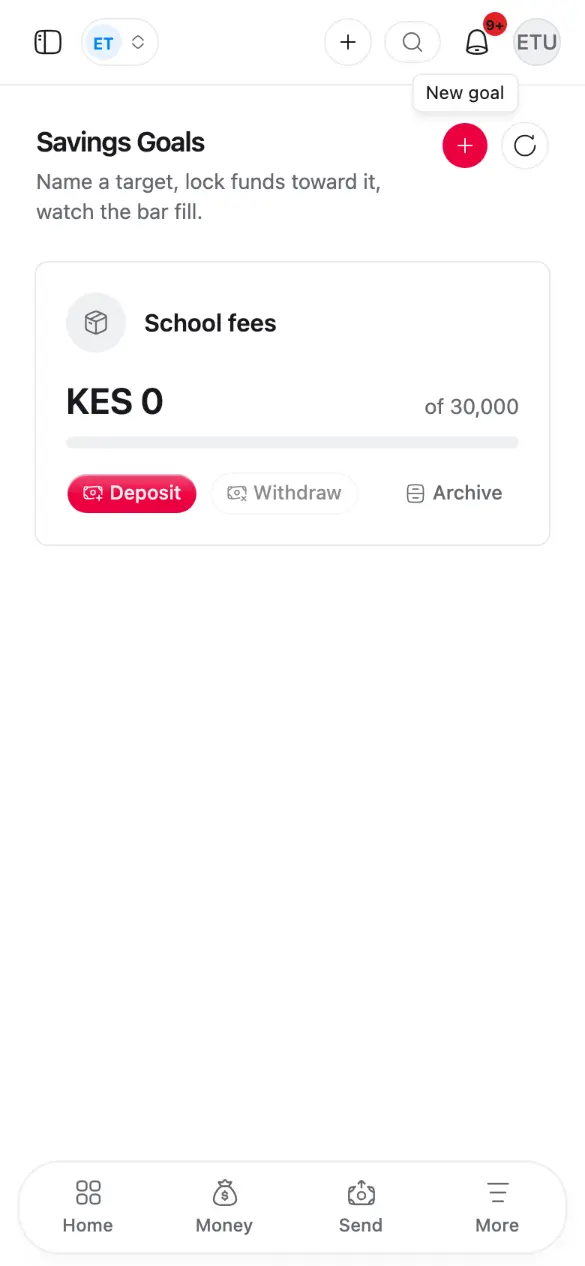
The goal shows in your list with KES 0 saved.
- Step 8.
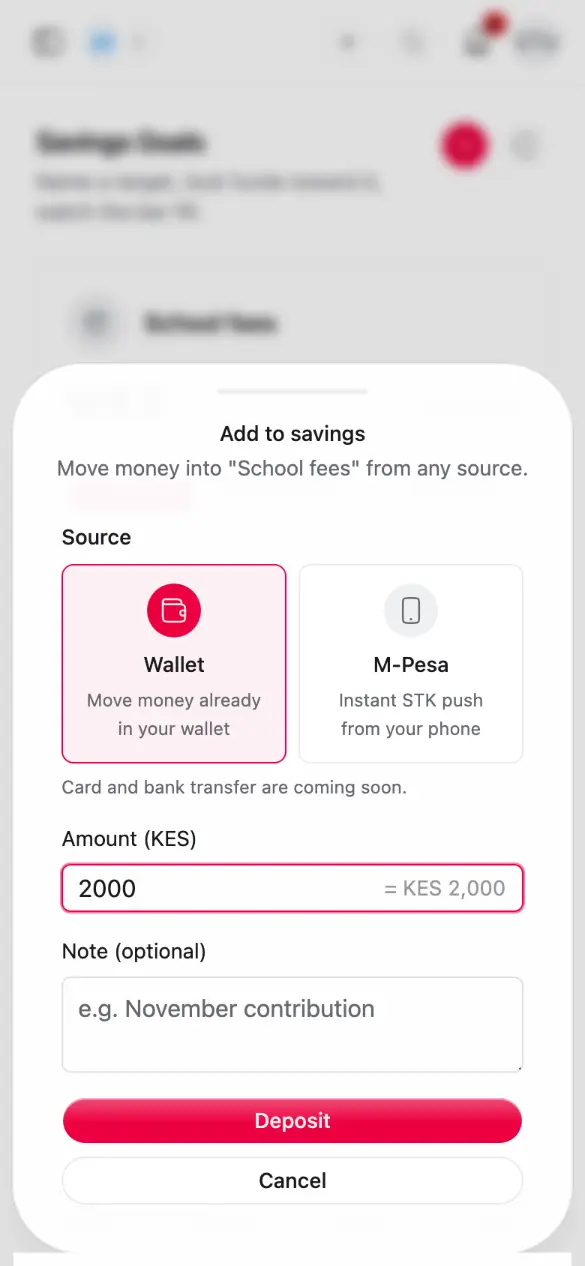
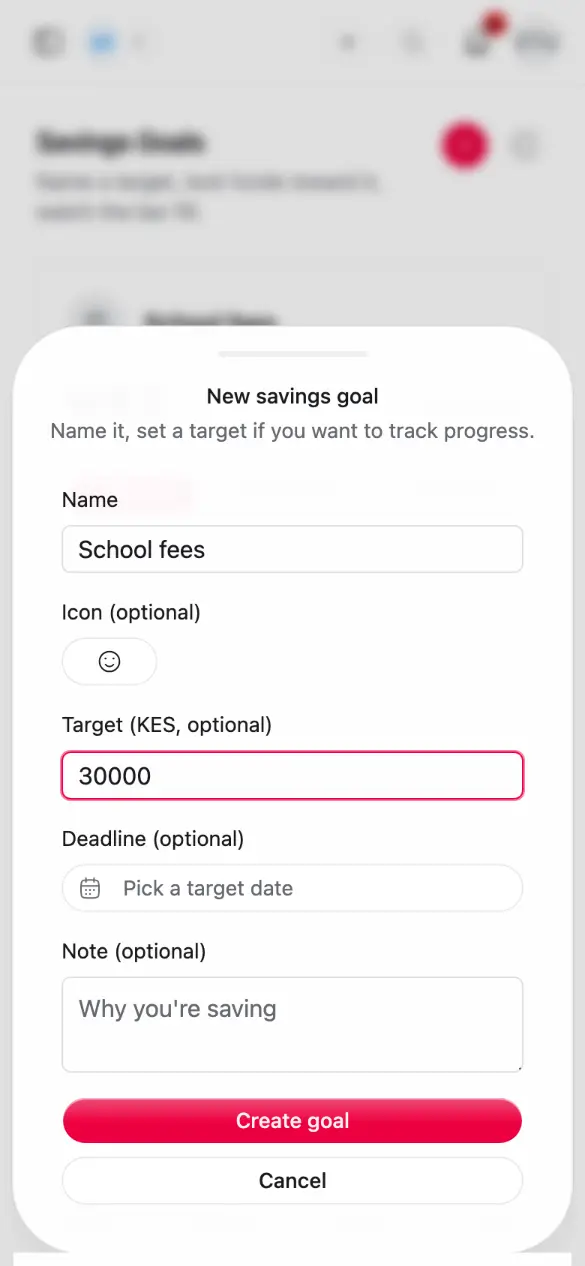
Tap Deposit on the goal
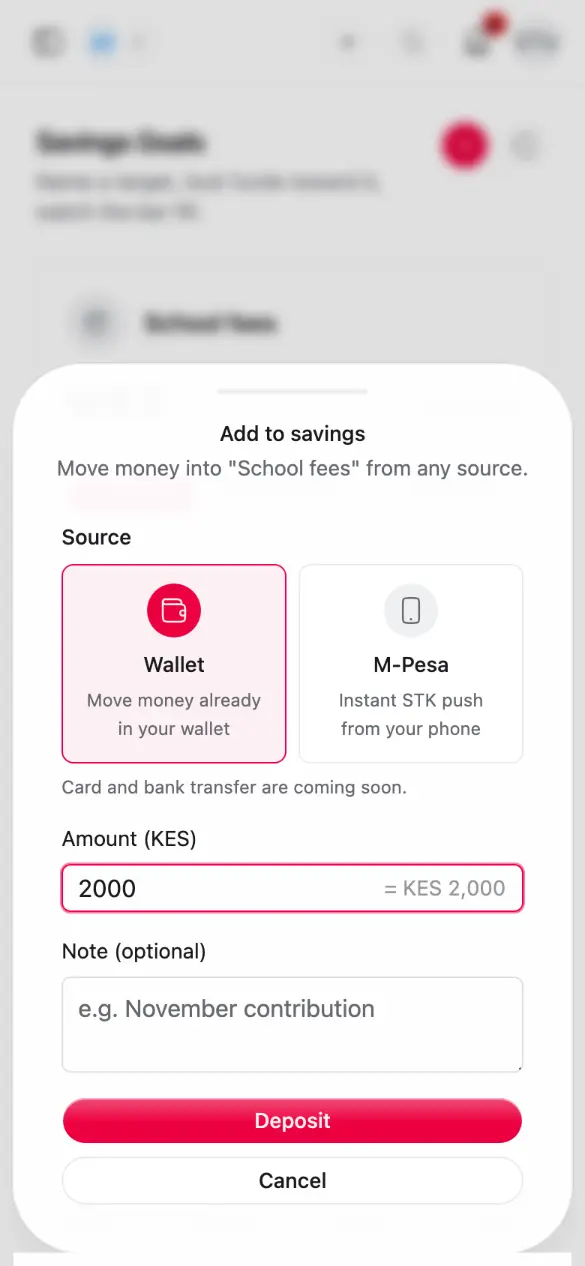
You choose where the money comes from: your wallet, or M-Pesa straight from your phone.
- Step 9.
Type the amount
Type in Amount (KES), for example 2000
- Step 10.
Tap Deposit
From your wallet the money moves at once. From M-Pesa you approve a prompt on your phone first.
The goal's bar fills. That money is no longer part of your spendable wallet balance.